MotionControl Studio
The Kling VIDEO 2.6 Motion Control feature enables precise control of character actions and expressions from a reference image. In Image-to-Video generation, you can select one character and apply custom motions using a video reference, or you can choose a motion from the library. The generated video will deliver character performance with precise control over actions and expressions.
Kling VIDEO 2.6 Motion Control Demo Effects
Perfectly Synchronised Full-Body Motions
Motion Reference

Image Reference
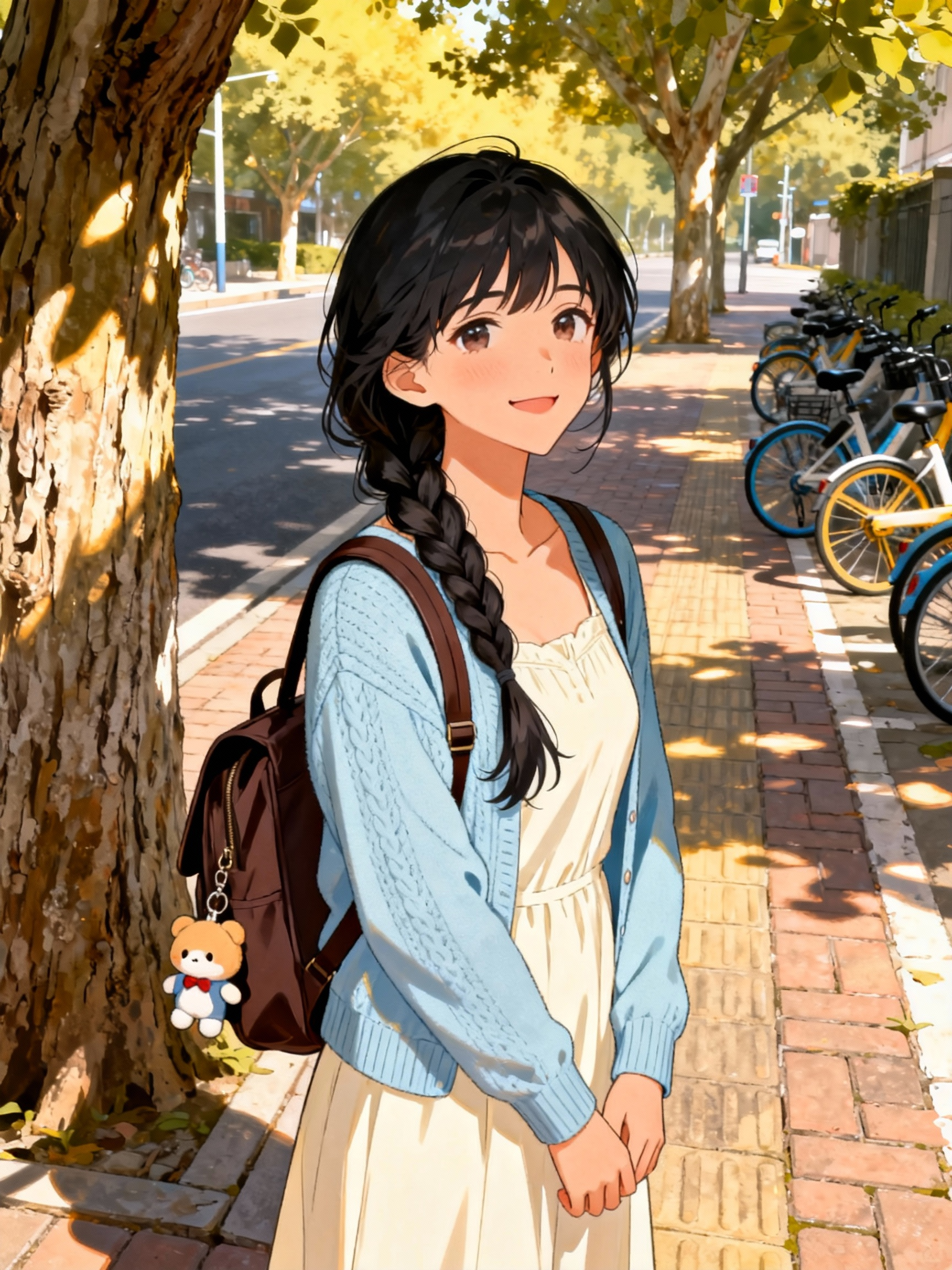
Output
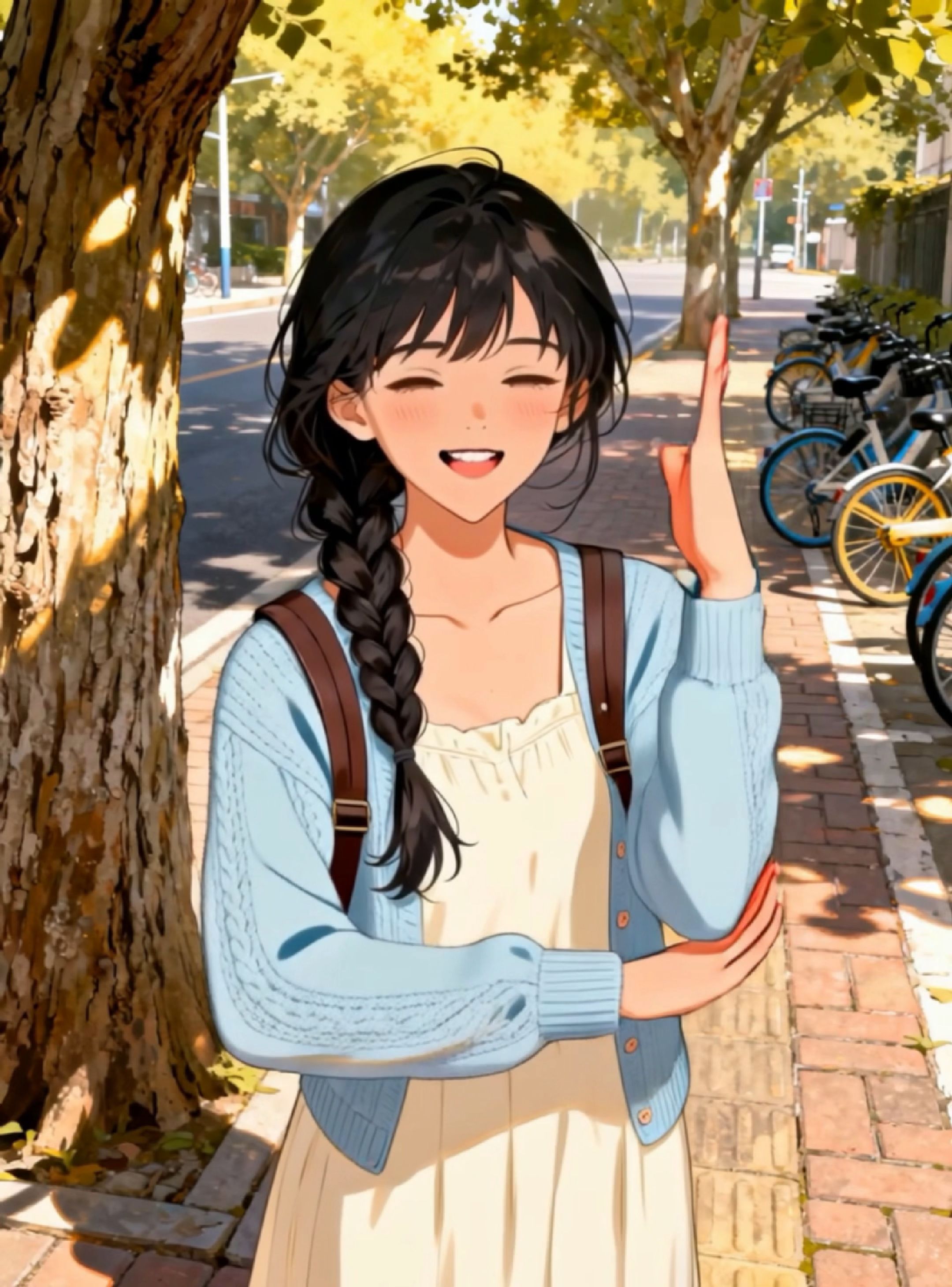
Motion Reference
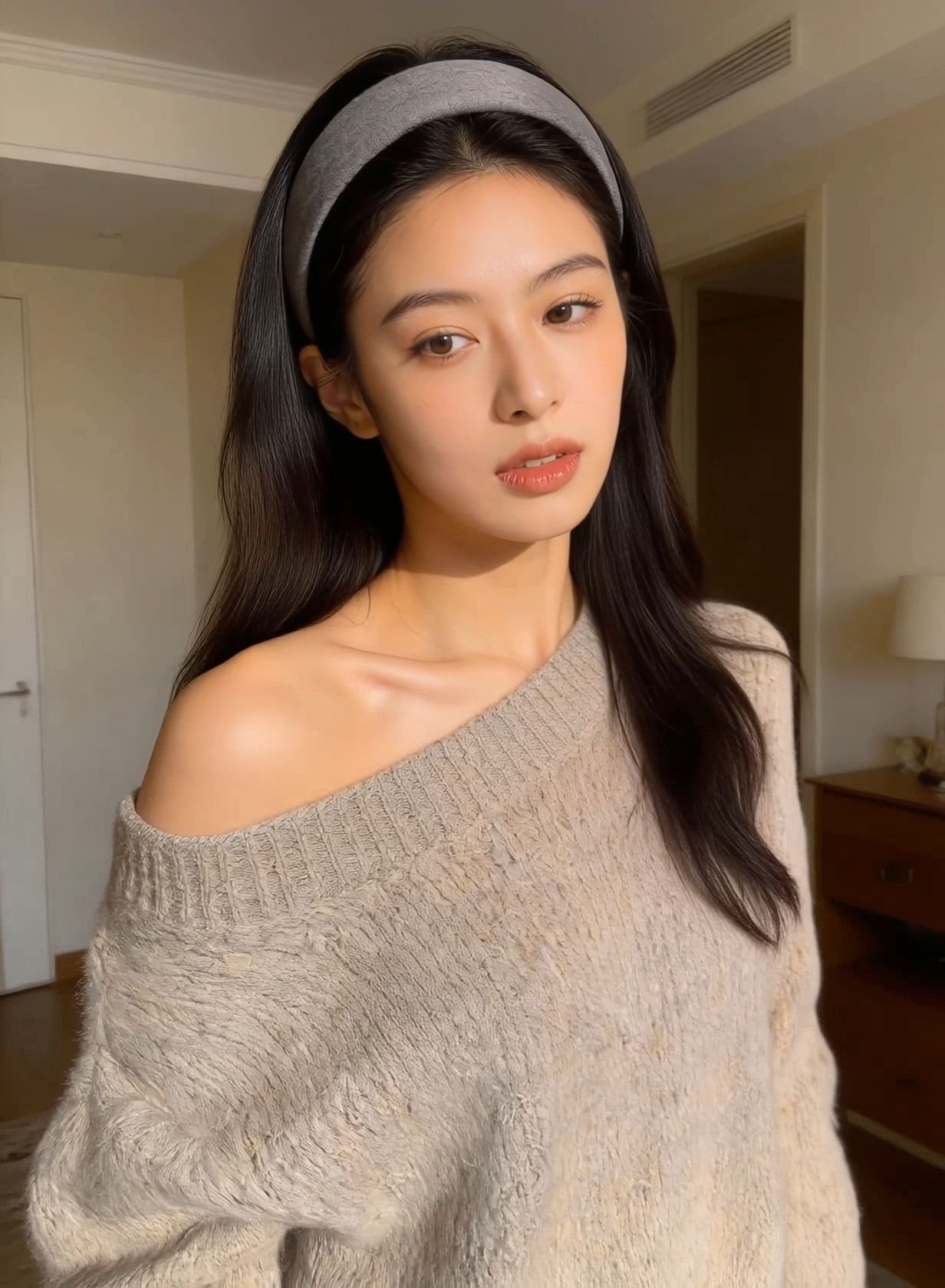
Image Reference
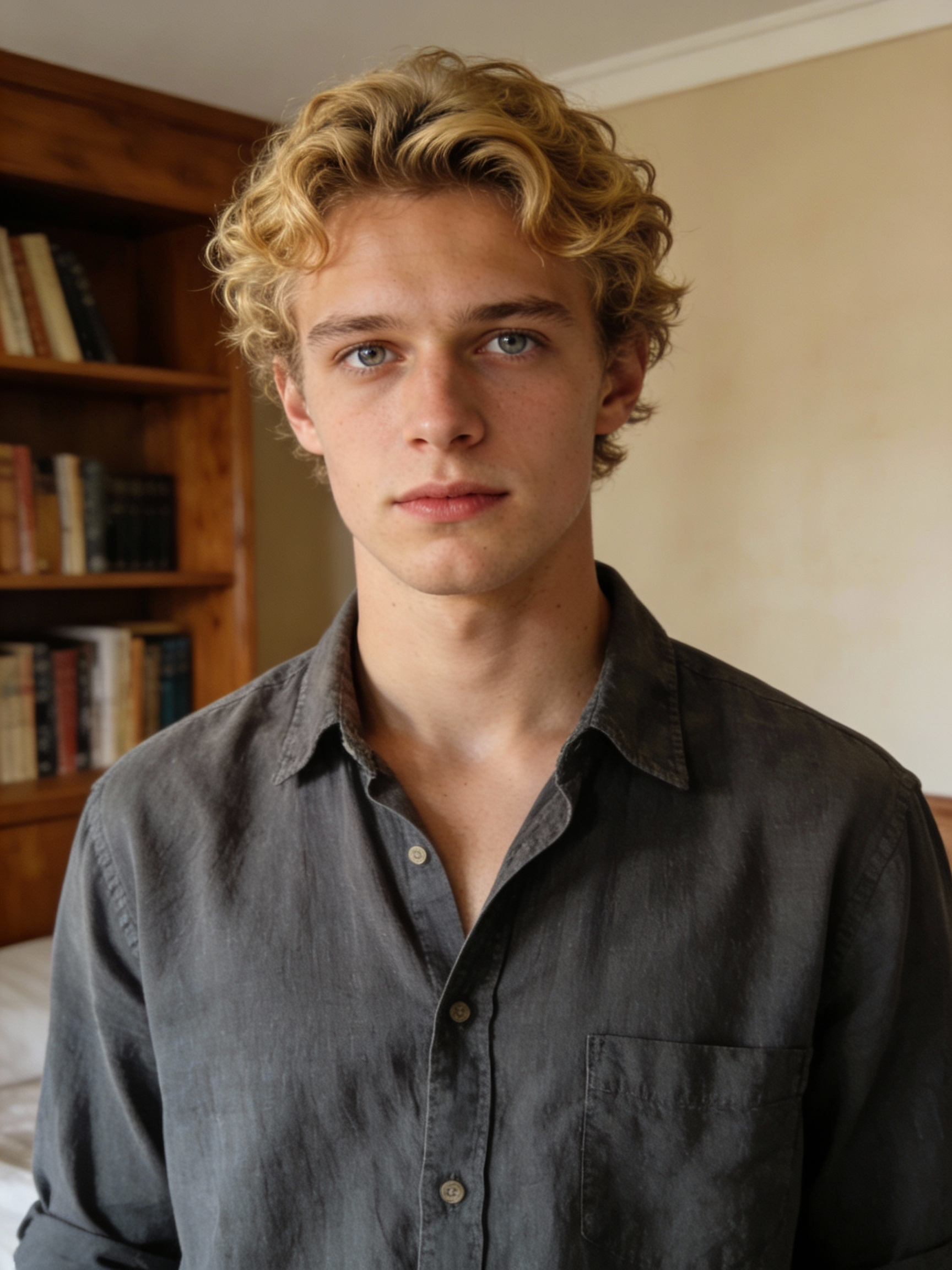
Output
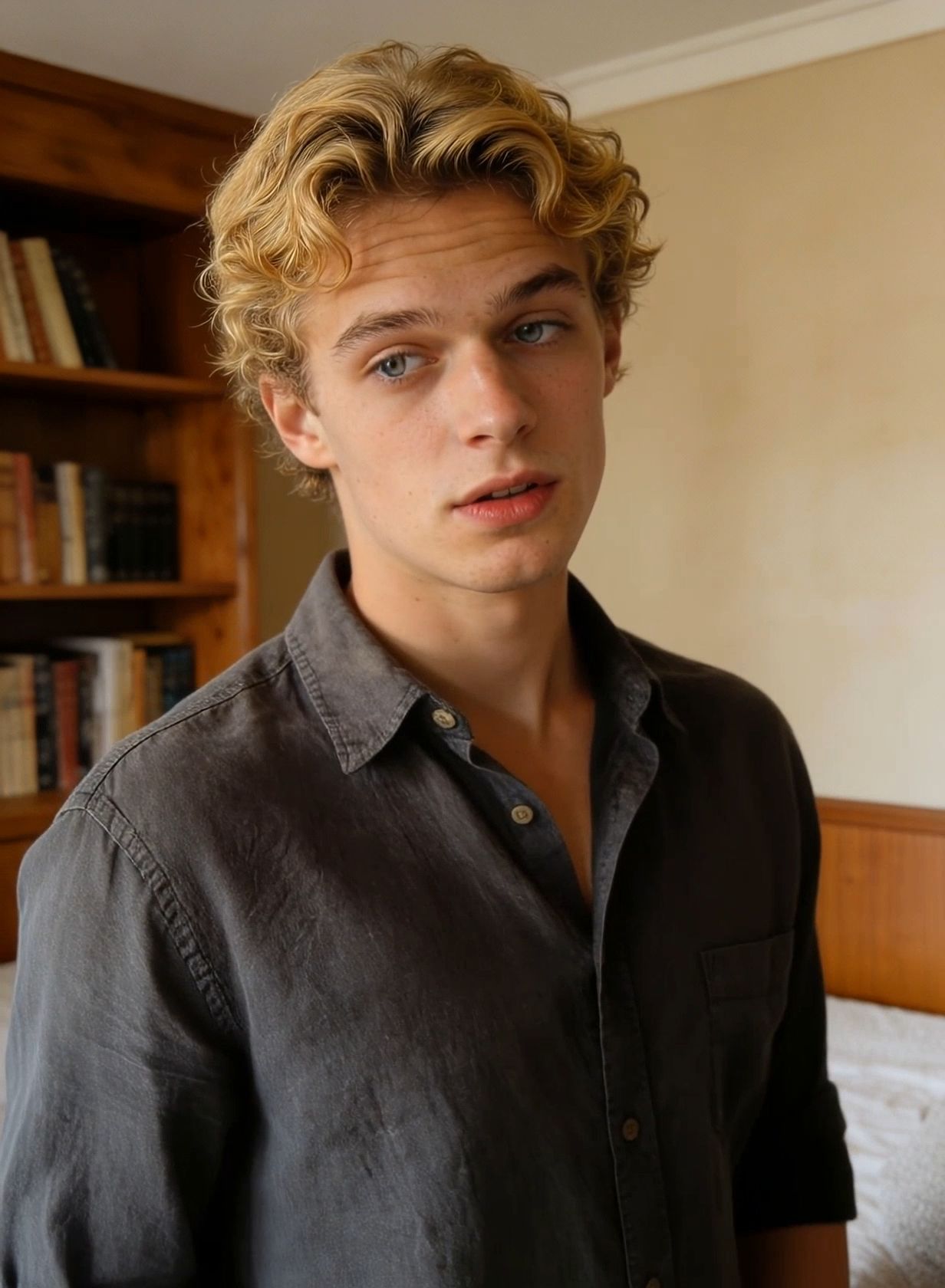
Masterful Performance of Complex Motions
Motion Reference
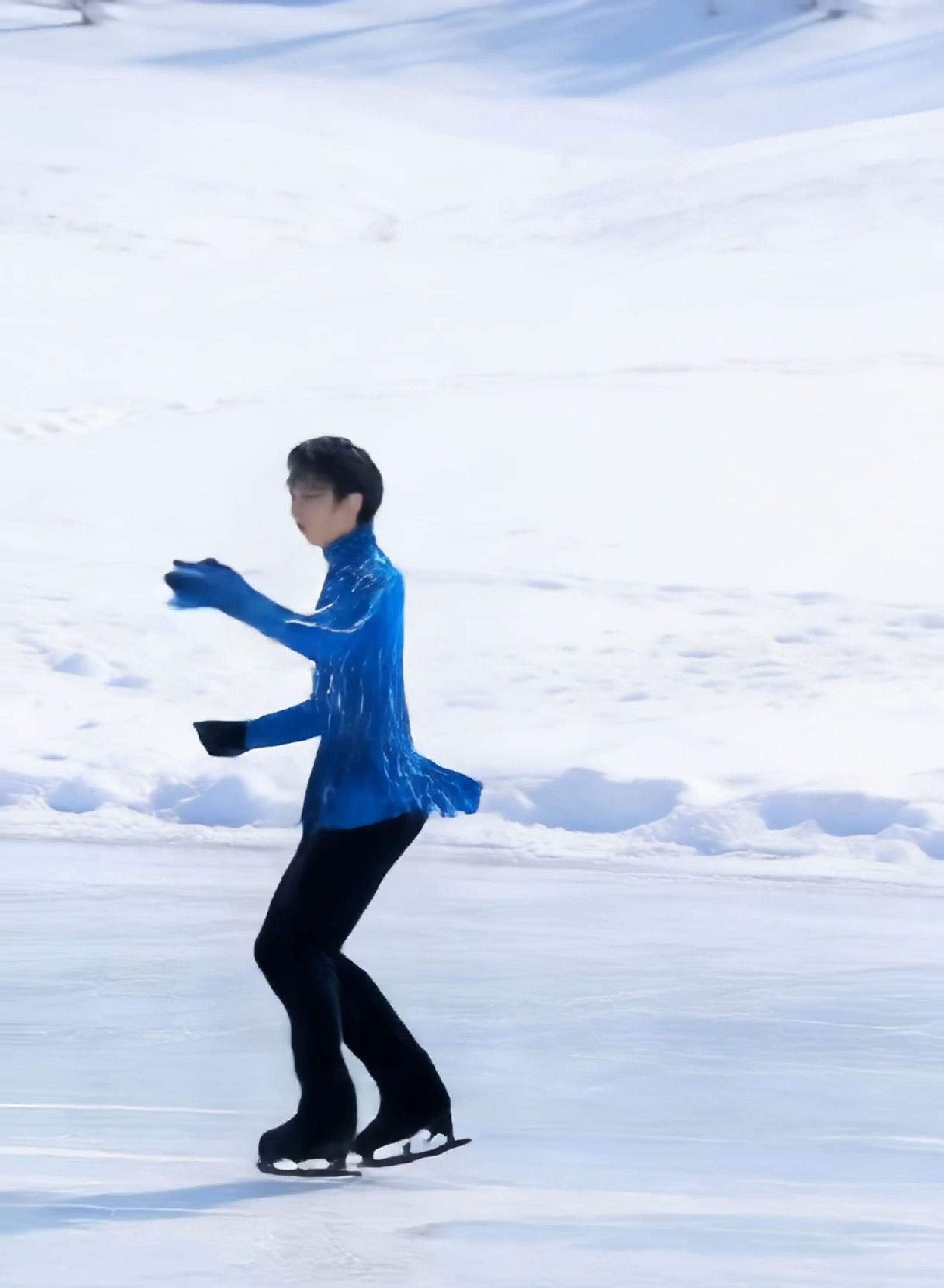
Image Reference
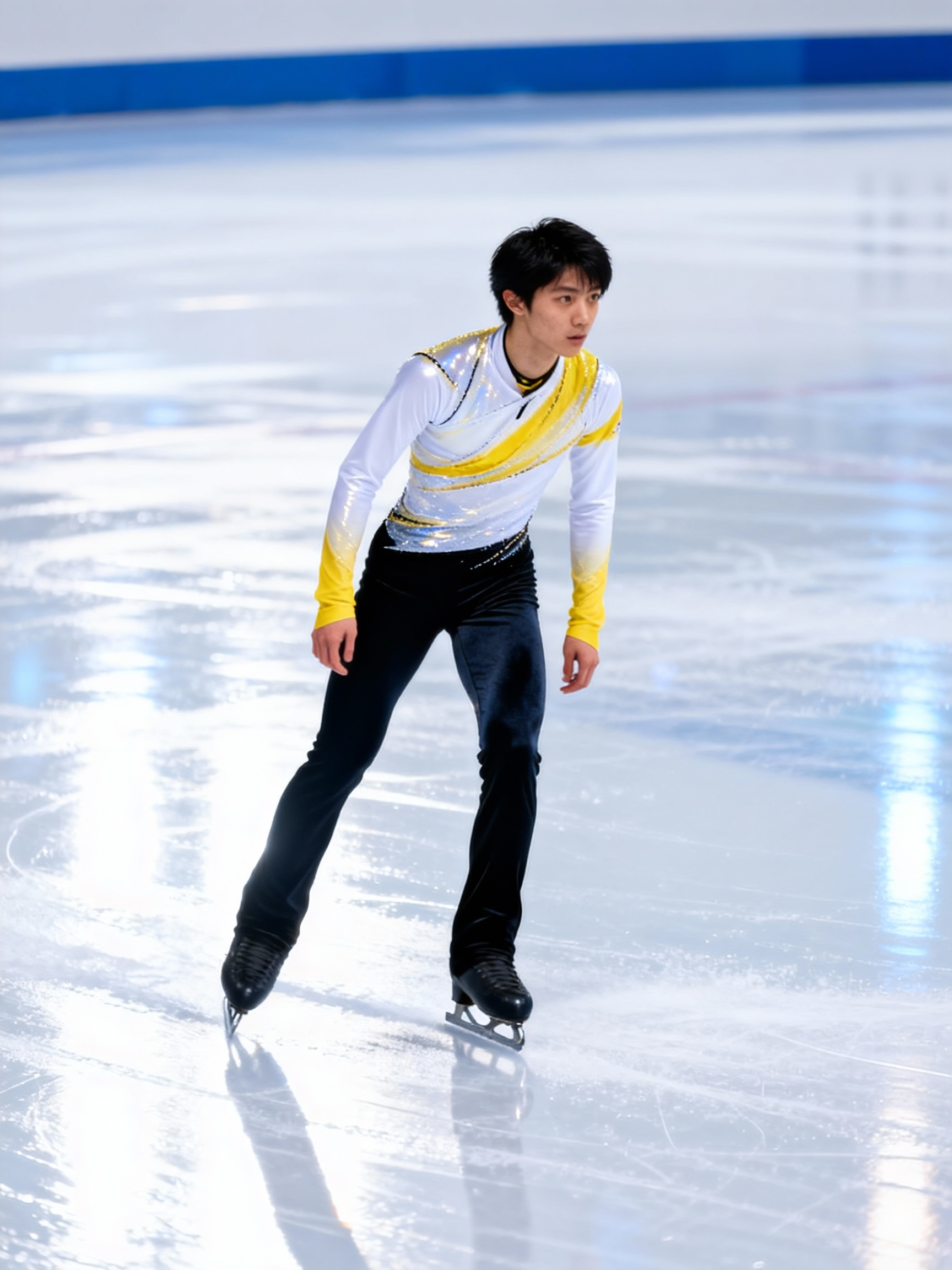
Output
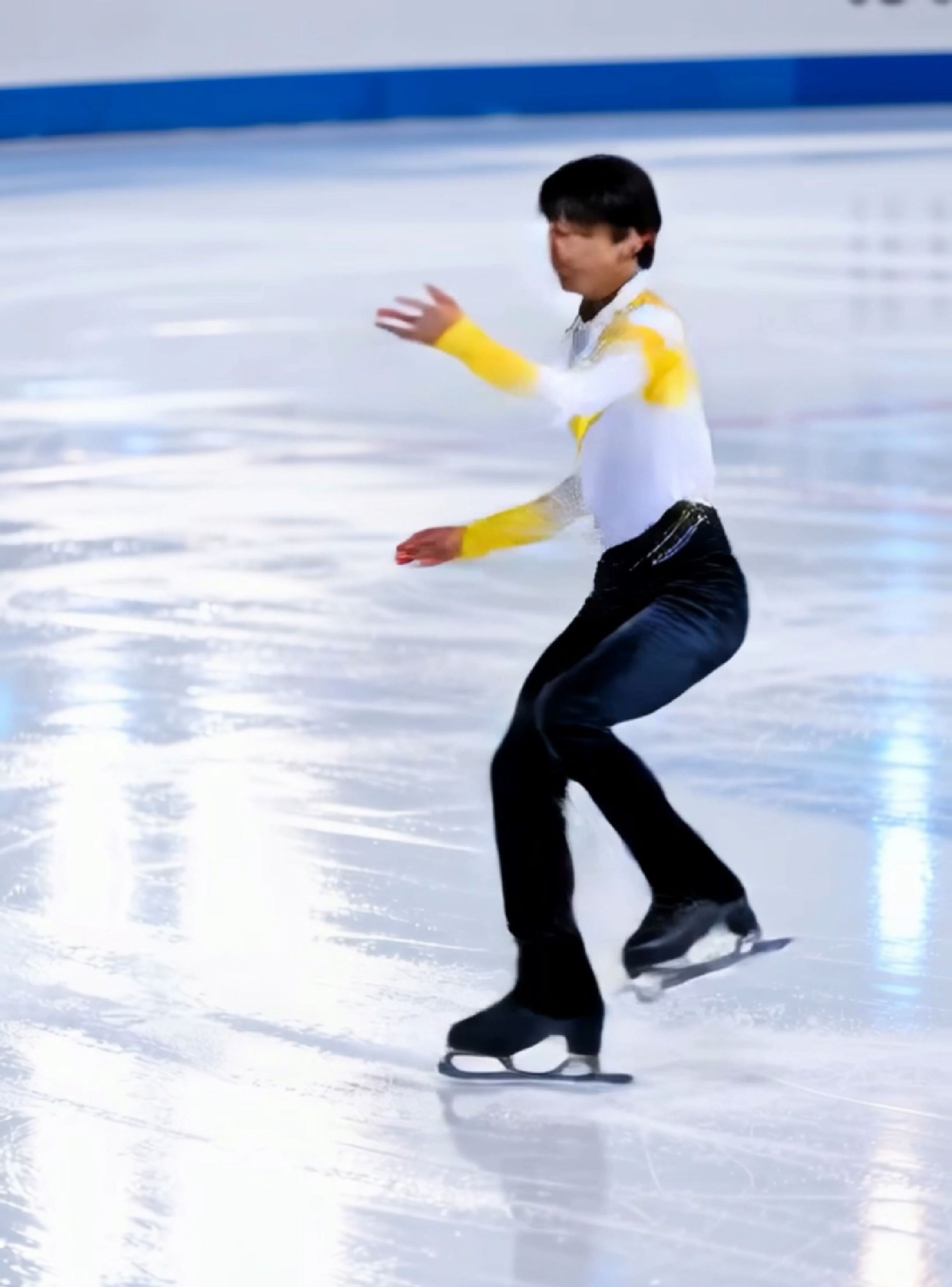
Motion Reference
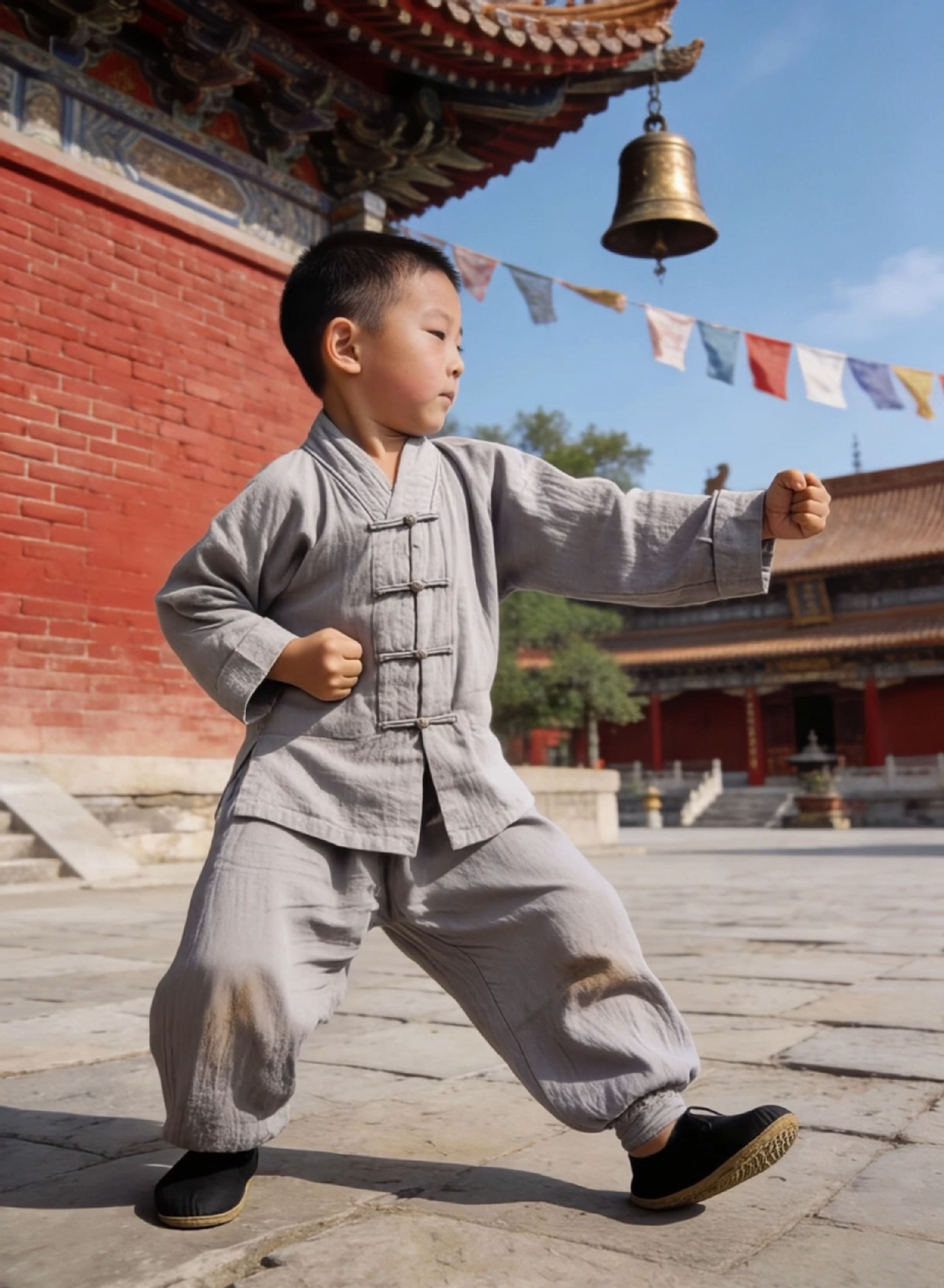
Image Reference
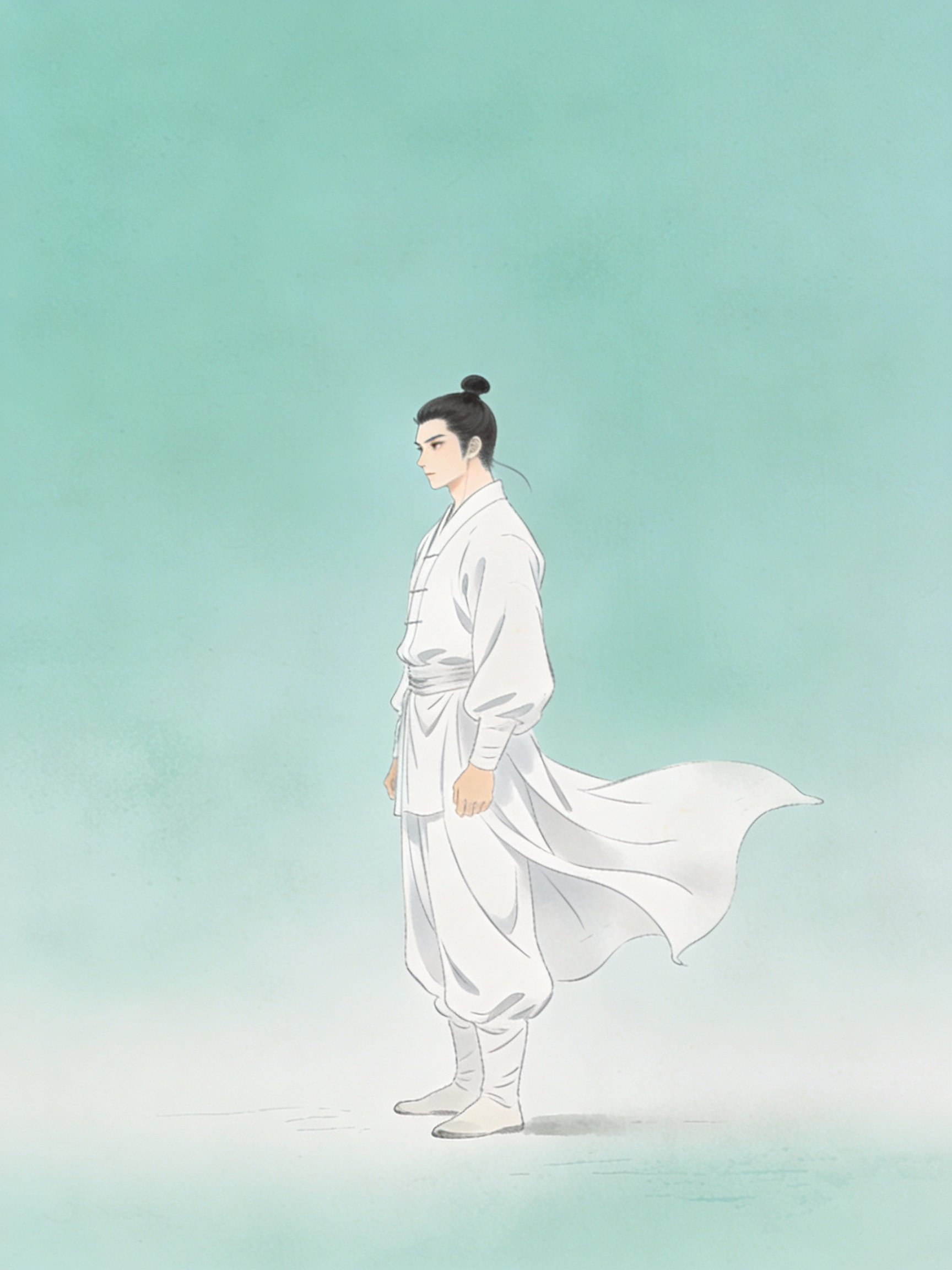
Output
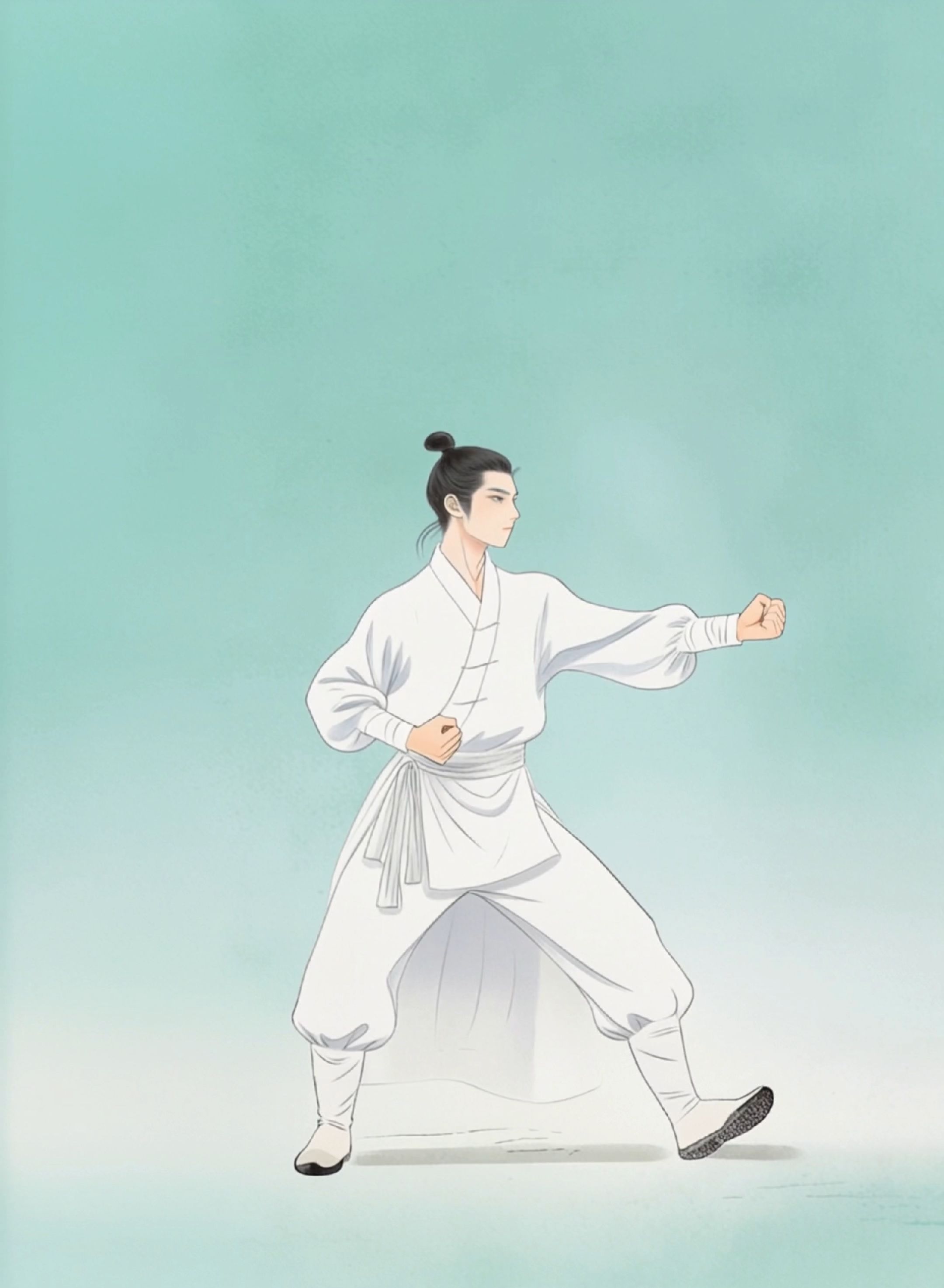
Precision in Hand Performances
Motion Reference
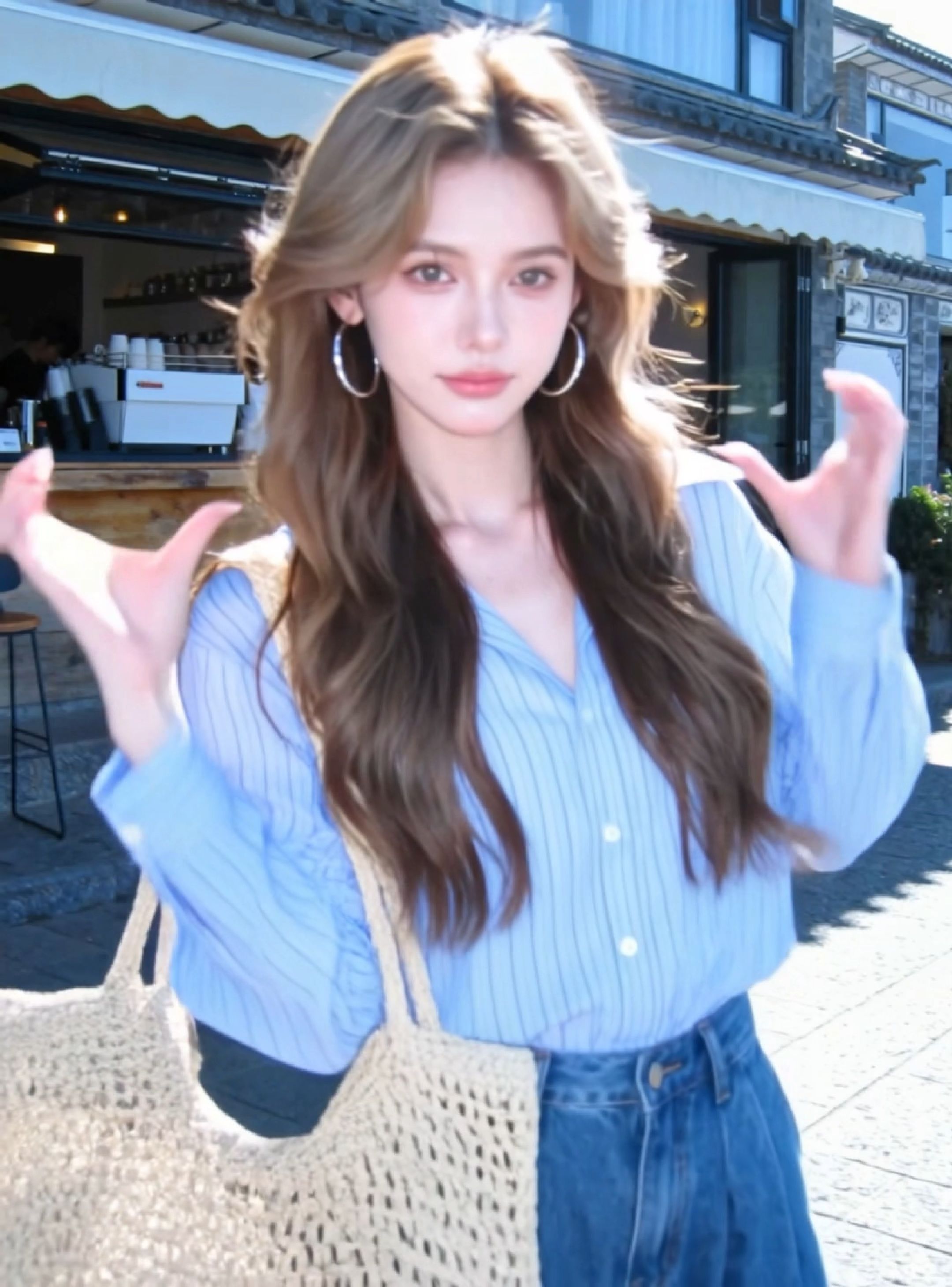
Image Reference

Output
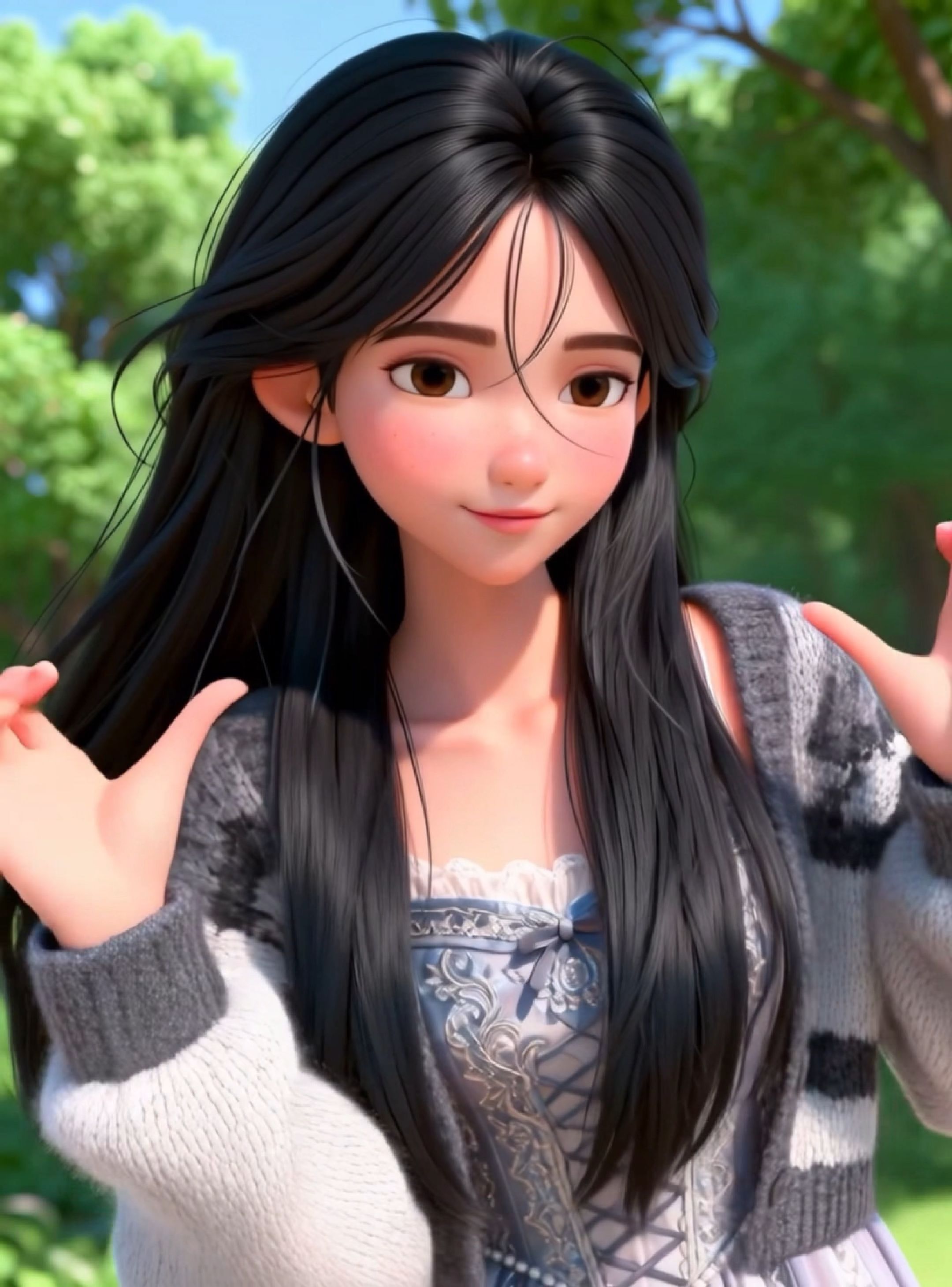
Motion Reference
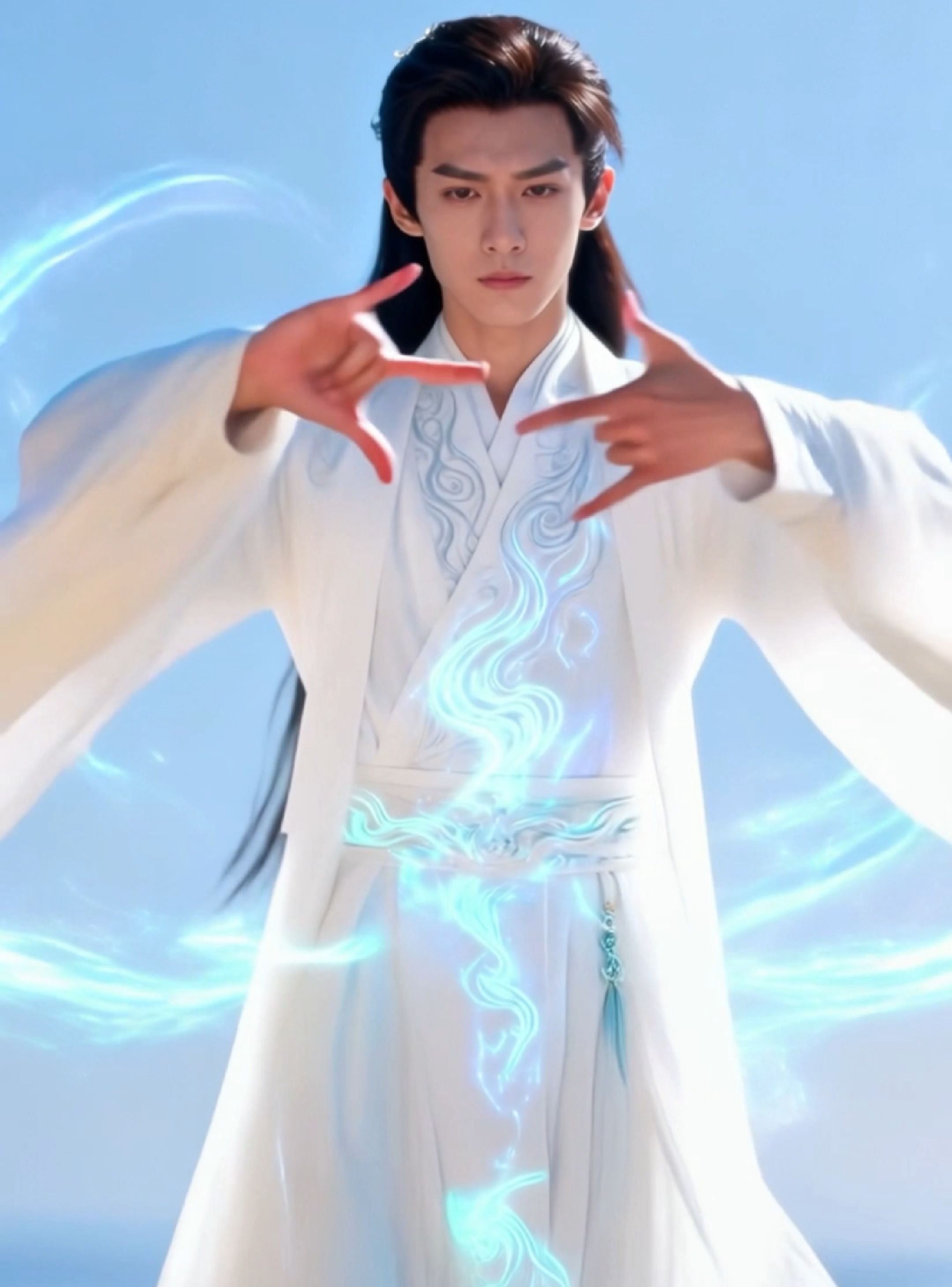
Image Reference
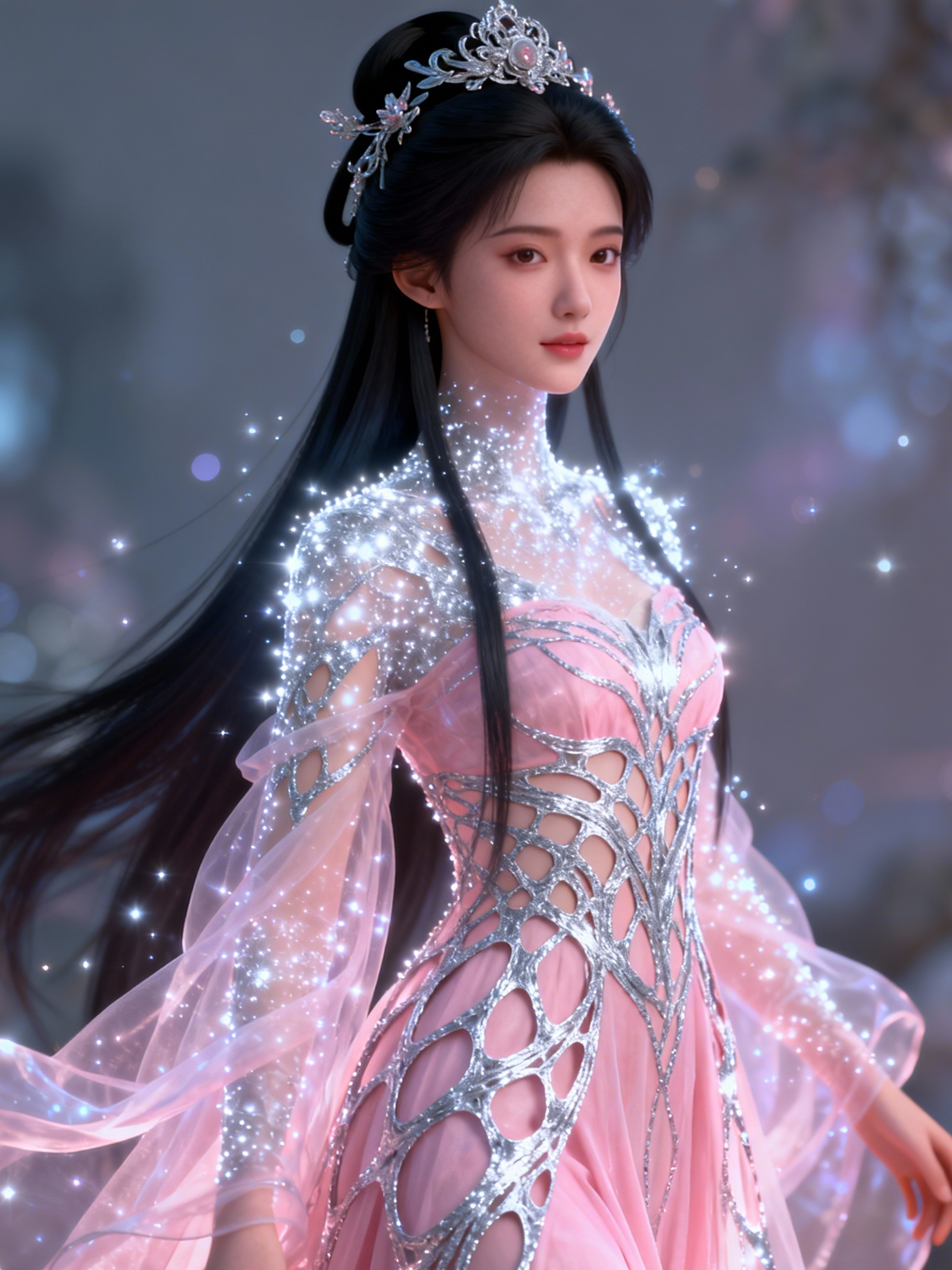
Output

30s One-Shot Action
Motion Reference
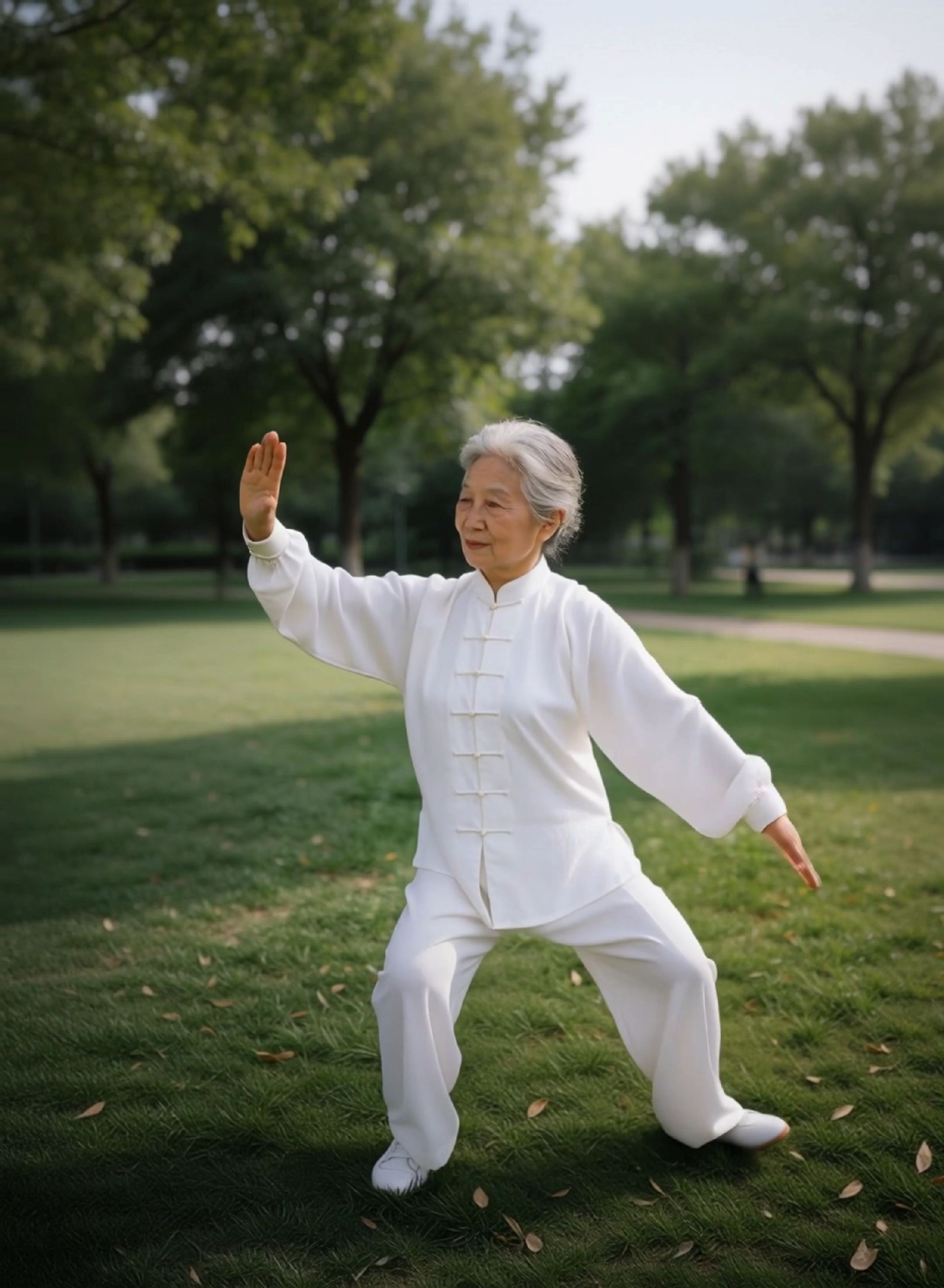
Image Reference

Output
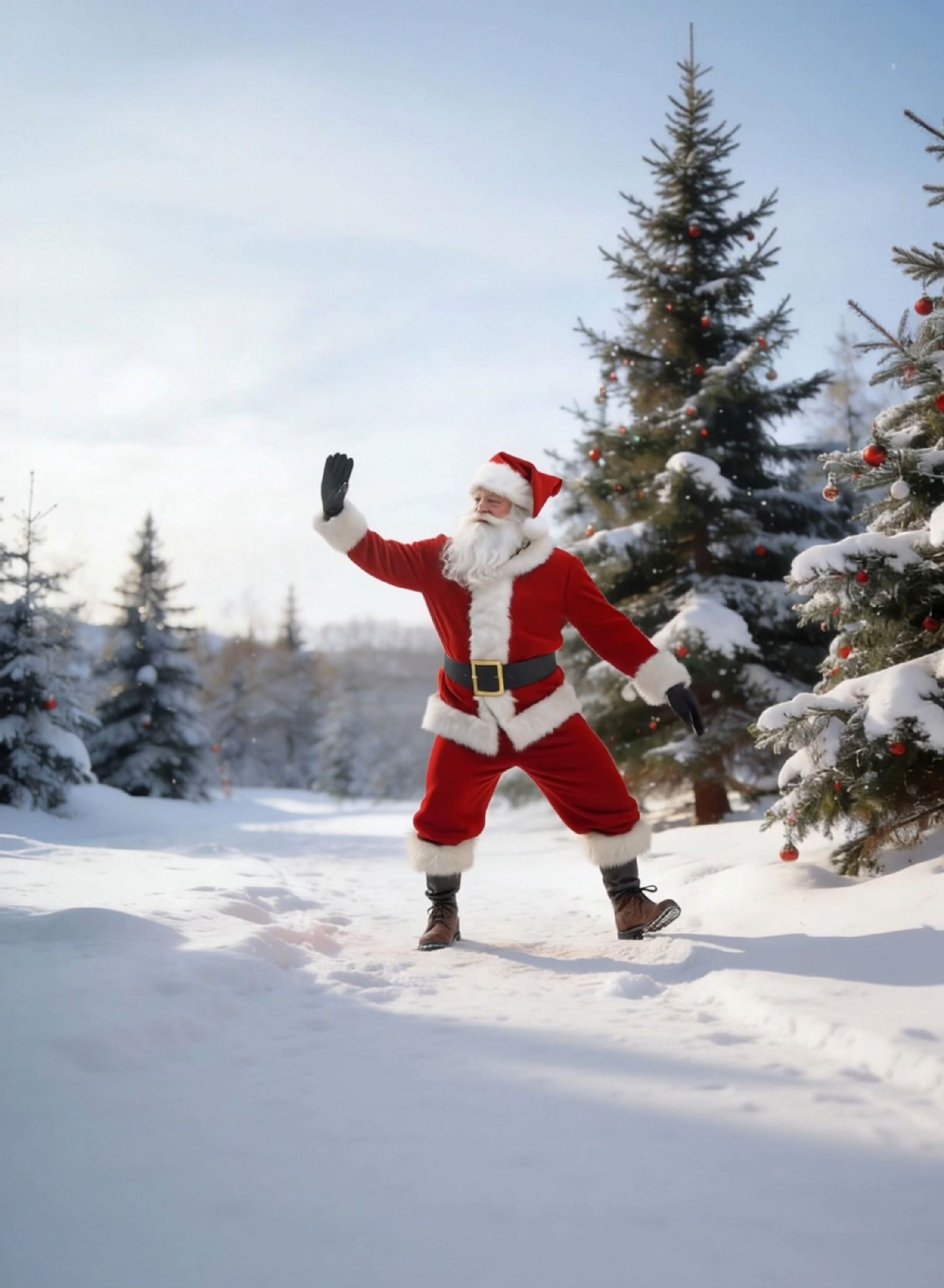
Motion Reference
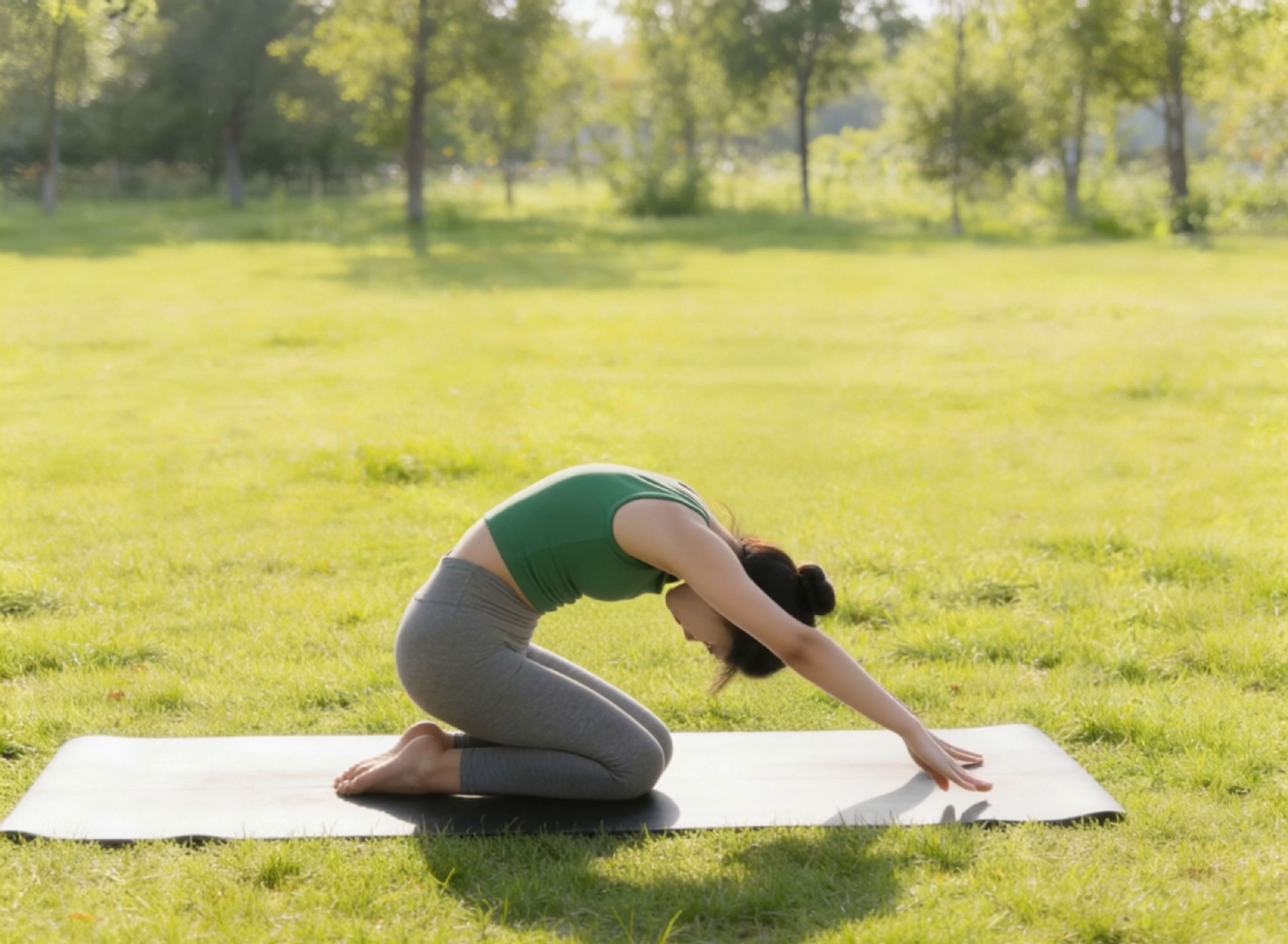
Image Reference
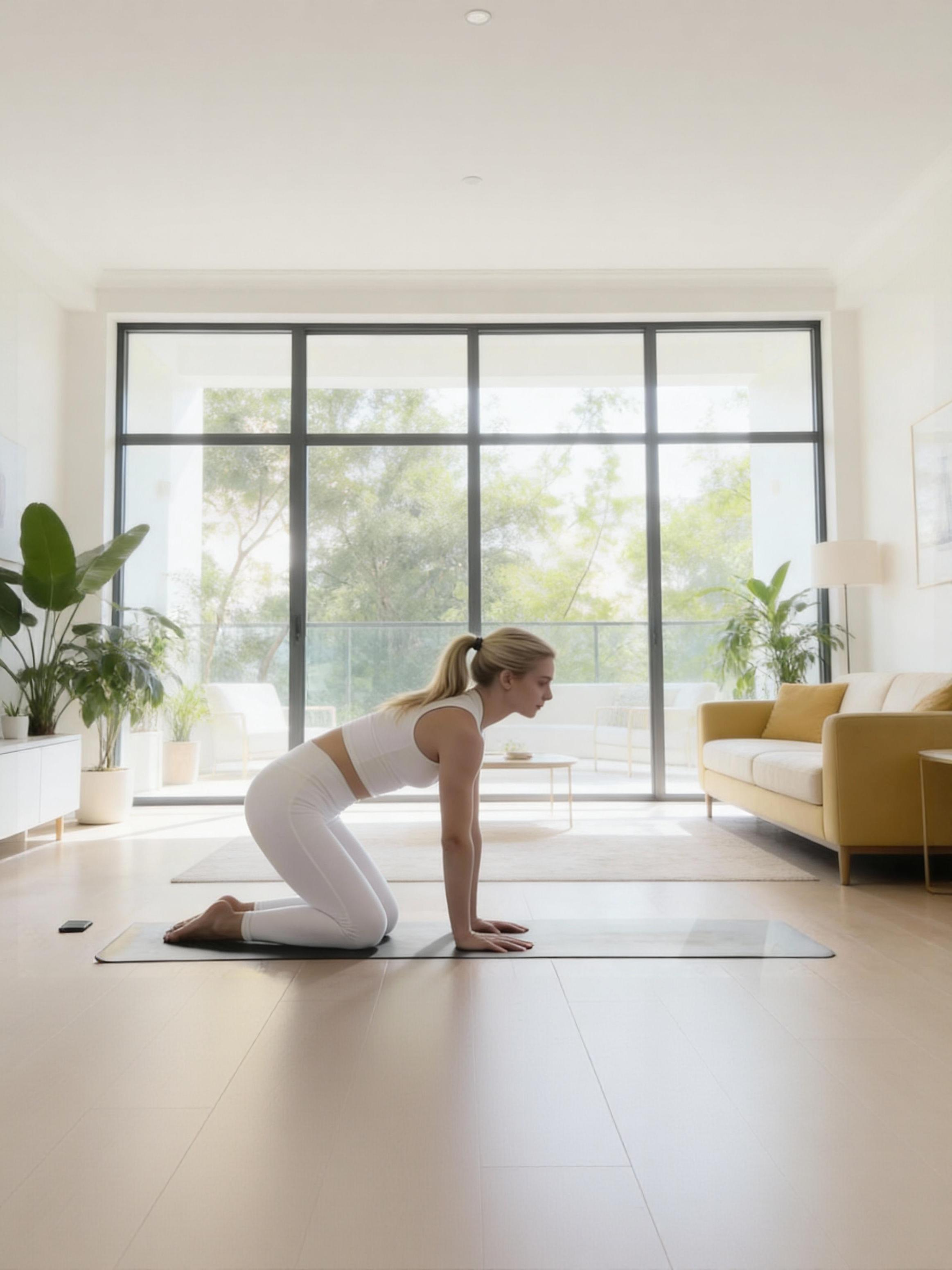
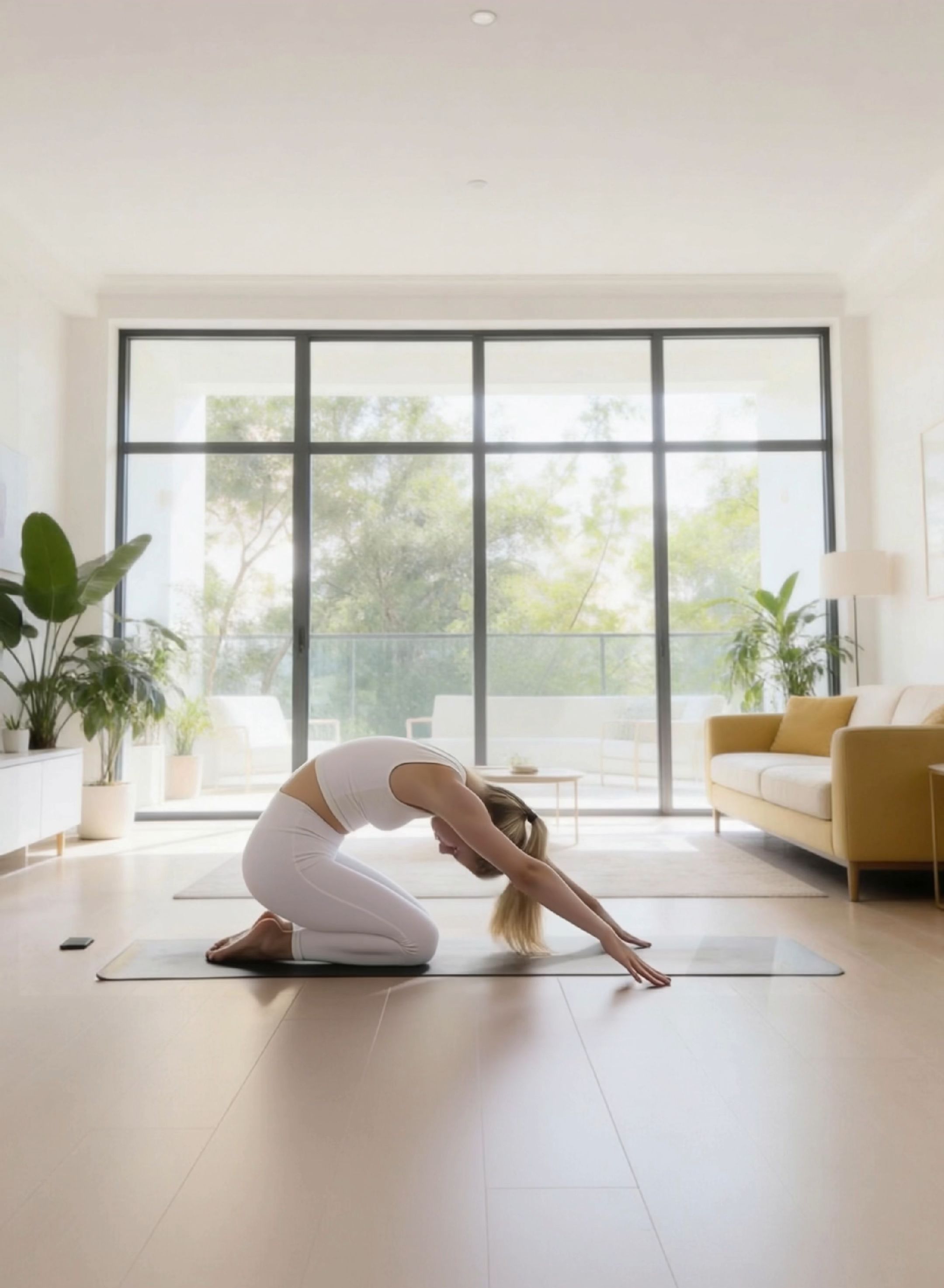
Output
Scene Details at Your Command
Motion Reference
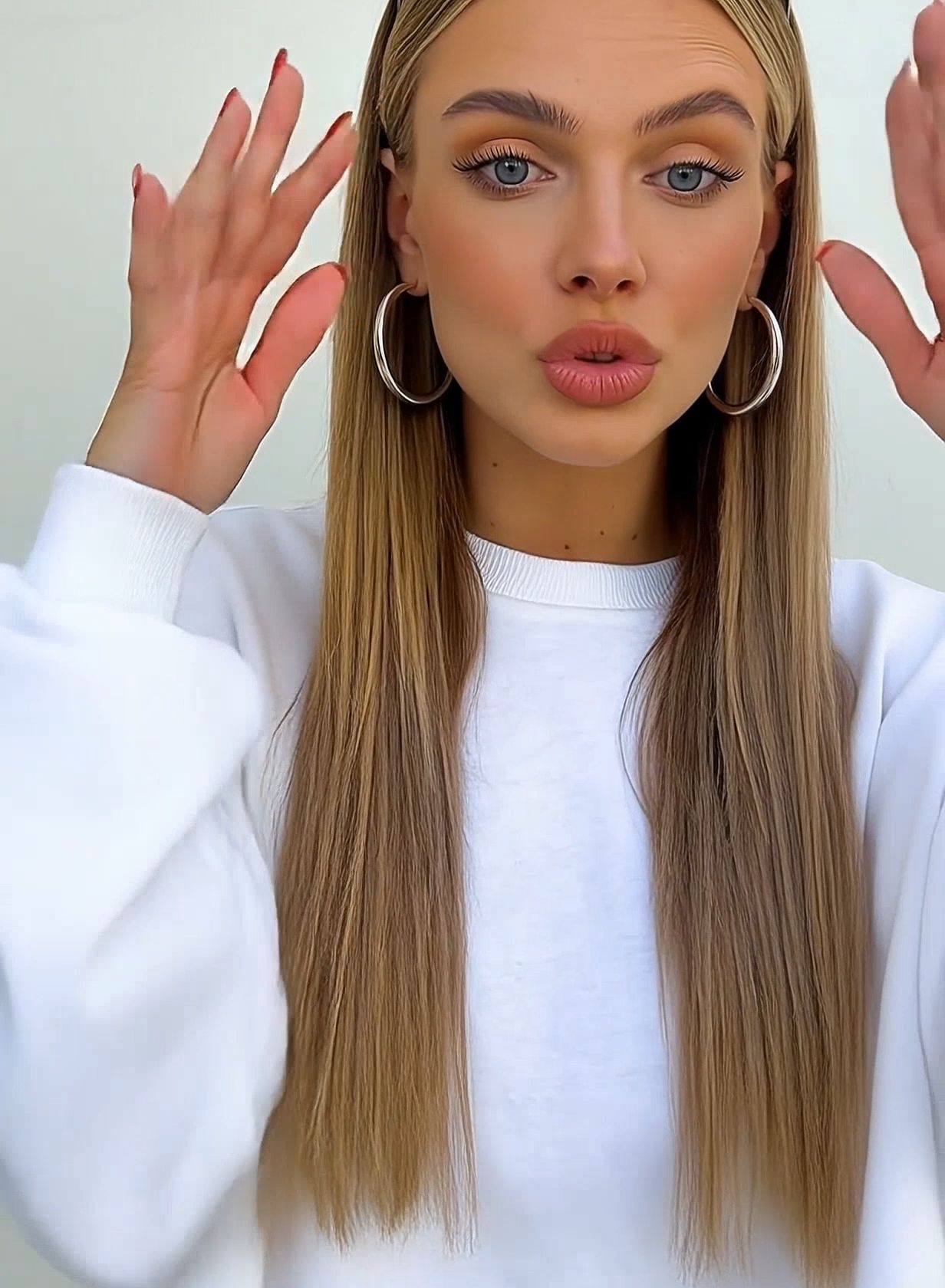
Image Reference
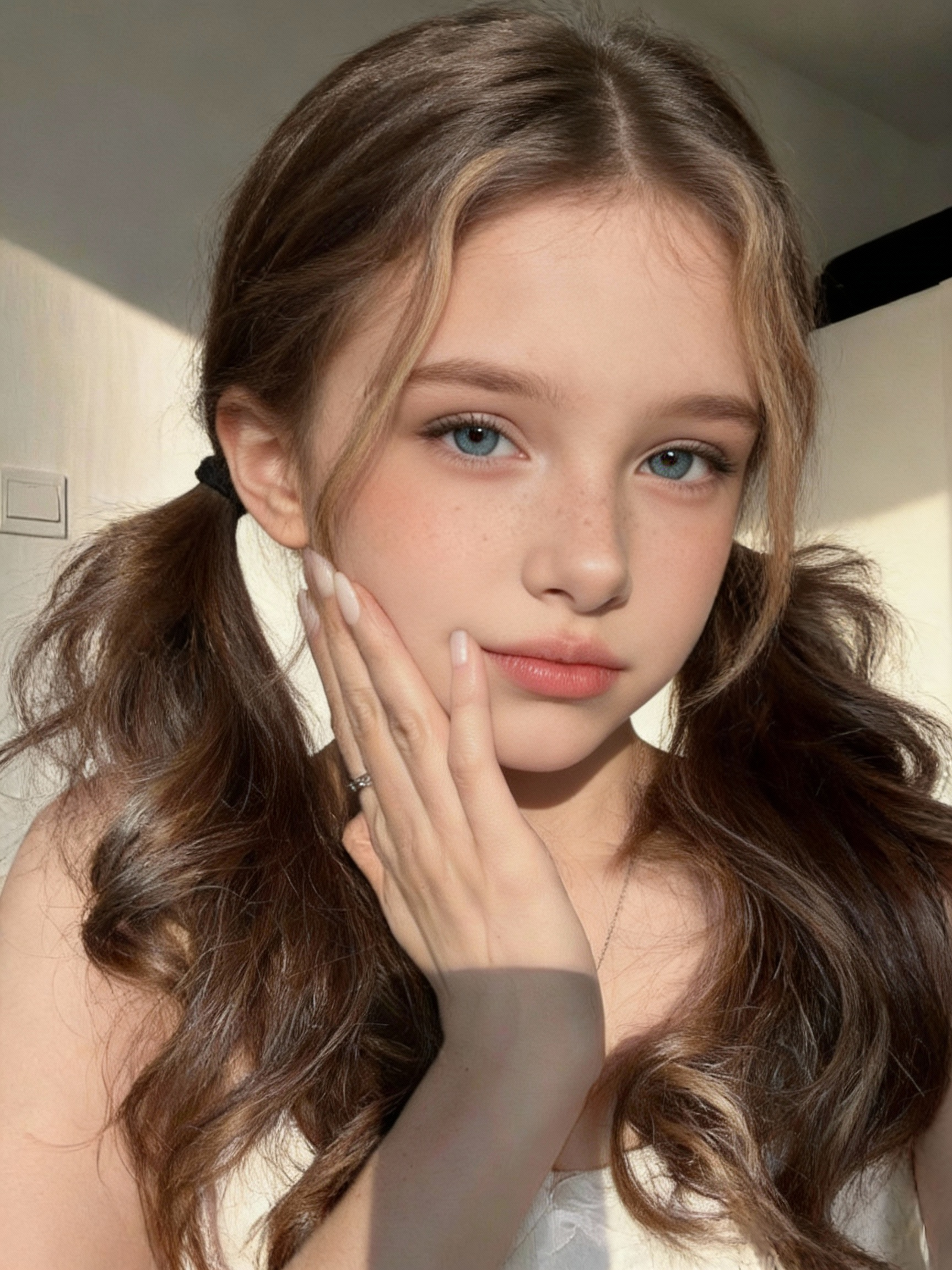
Output
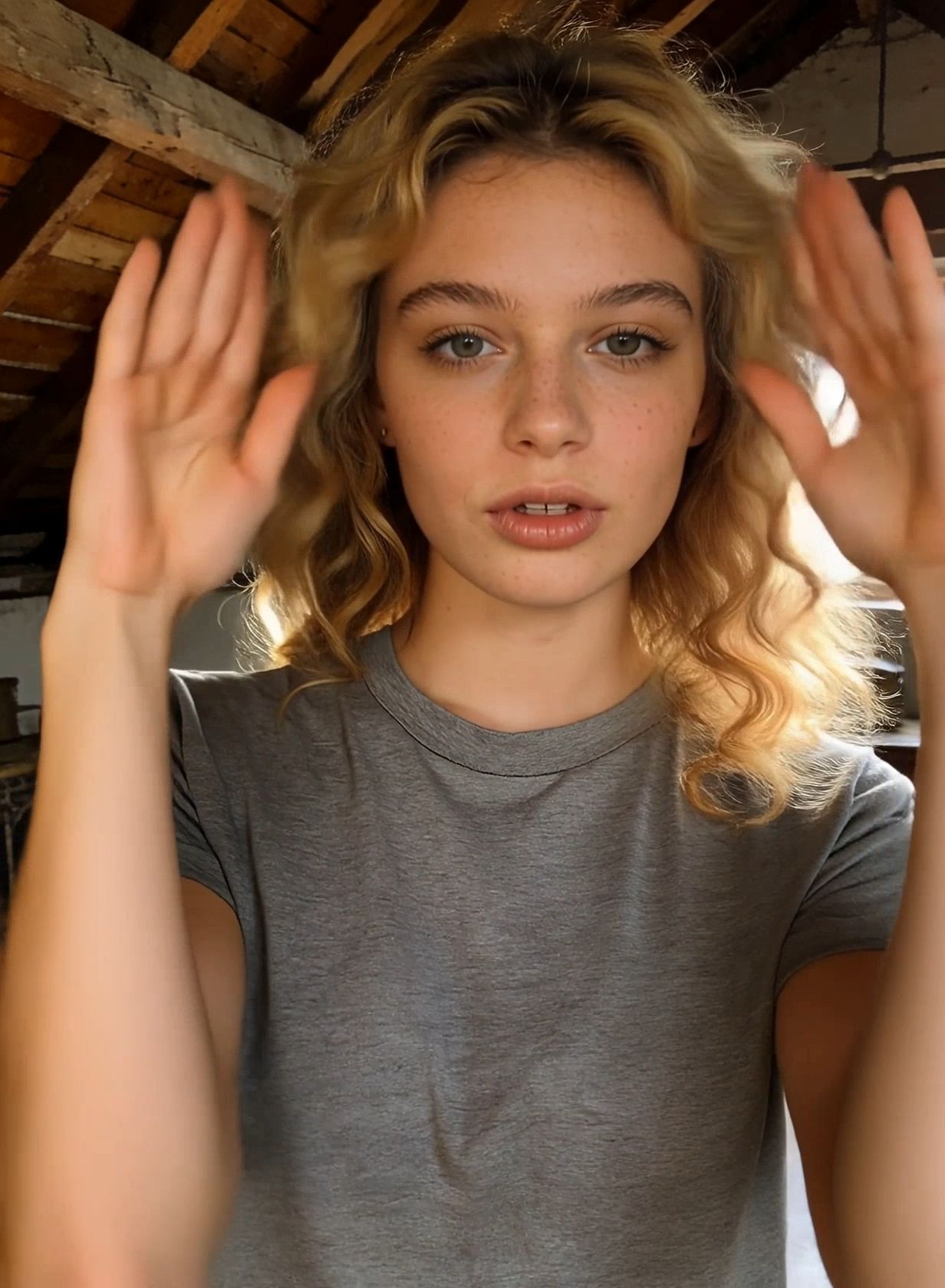
Prompt: A girl wearing a white tank top and a denim skirt.
Motion Reference
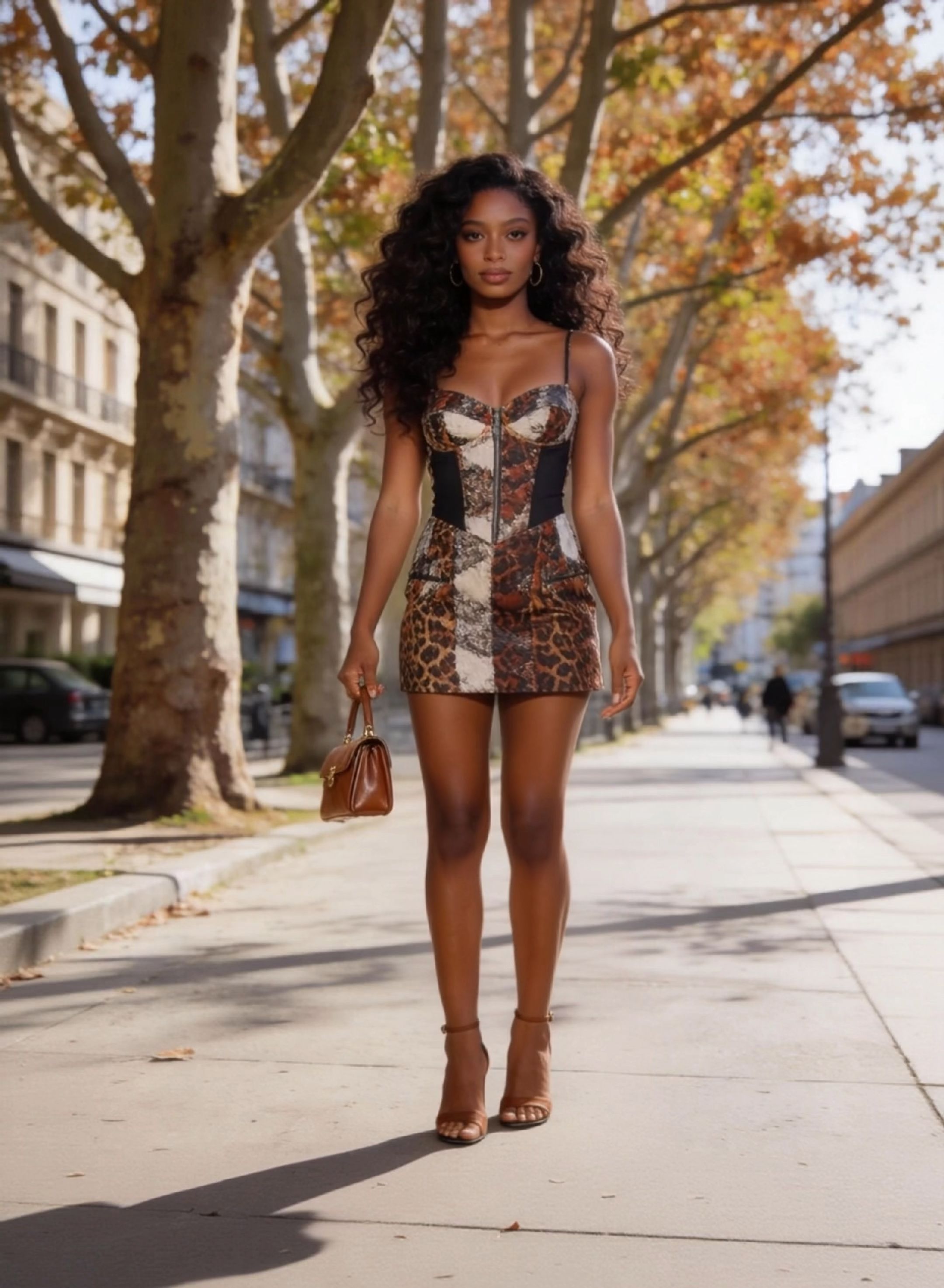
Image Reference
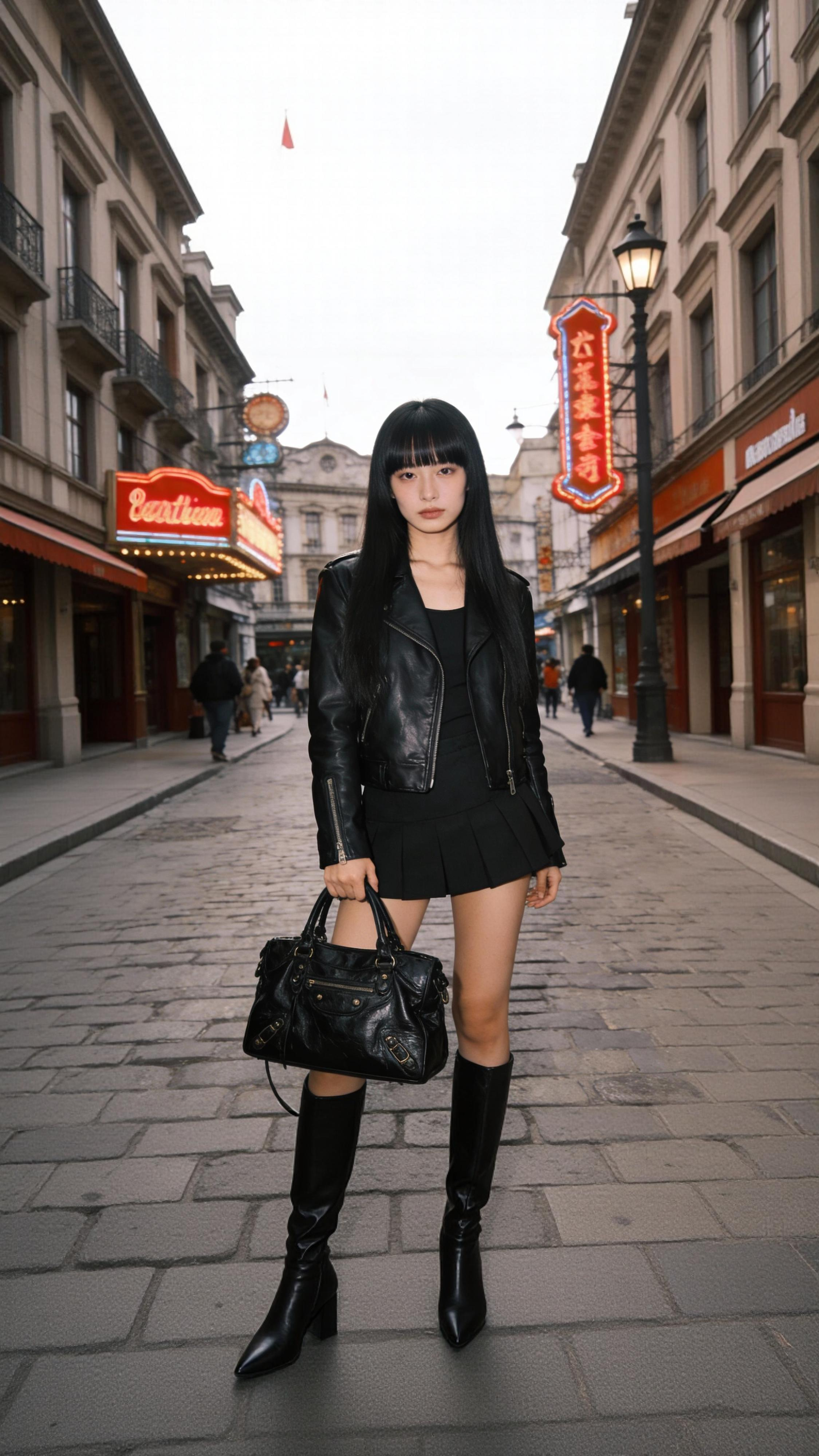
Output
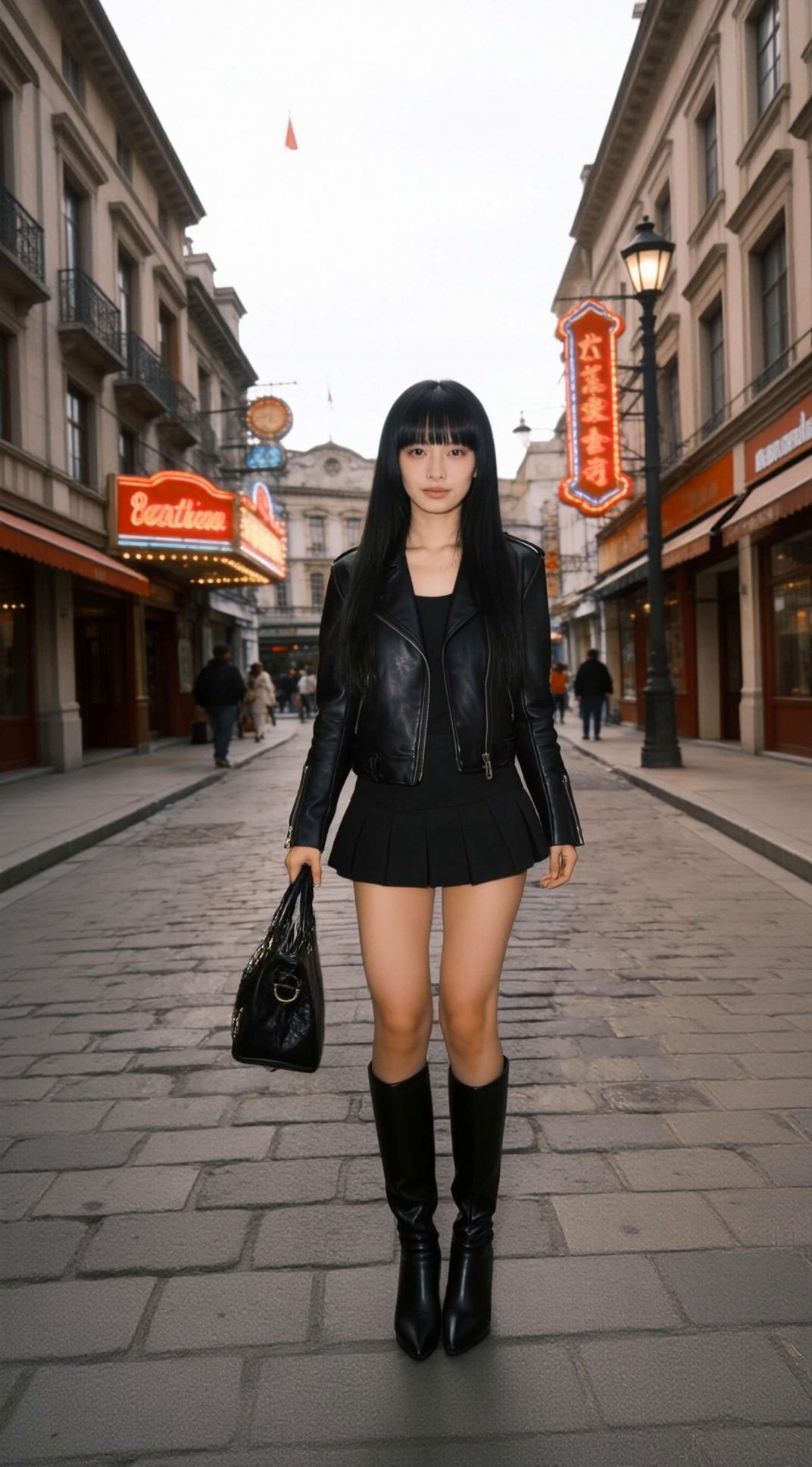
Prompt: A corgi runs in, circling around a girl's feet.
How to Use Kling VIDEO 2.6 Motion Control
- 1Add video of character actions to mimic; you can upload video from local resources or choose from the Motion Library.
- 2Add the character image, ensuring the proportions match those in the video for optimal results.
- 3By default, the video will be generated through "Character Orientation Matches Video". You can select "Character Orientation Matches Image" which supports camera movement.
- 4Enter the prompt to control background elements and other information, and the motion-controlled video will be generated.
How to Achieve the Desired Outputs
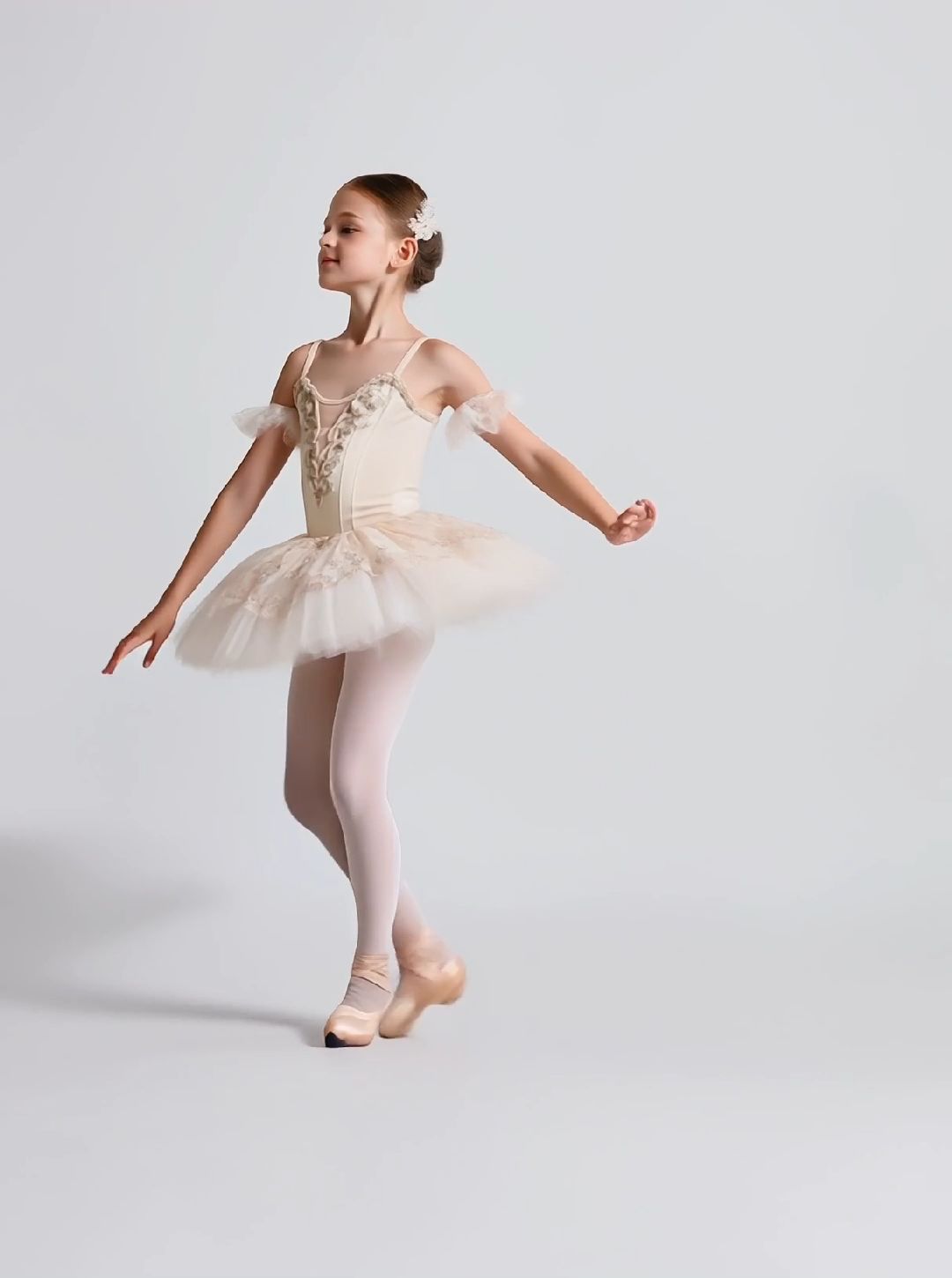
Match the character's full-body/half-body in the image reference with the full-body/half-body in the motion reference.
Use a motion reference that features a wide range of motion, moderate speed, and minimal displacement.
For large motions reference, ensure there is enough space in the image reference for the character to move freely.
Image Reference
Half-Body
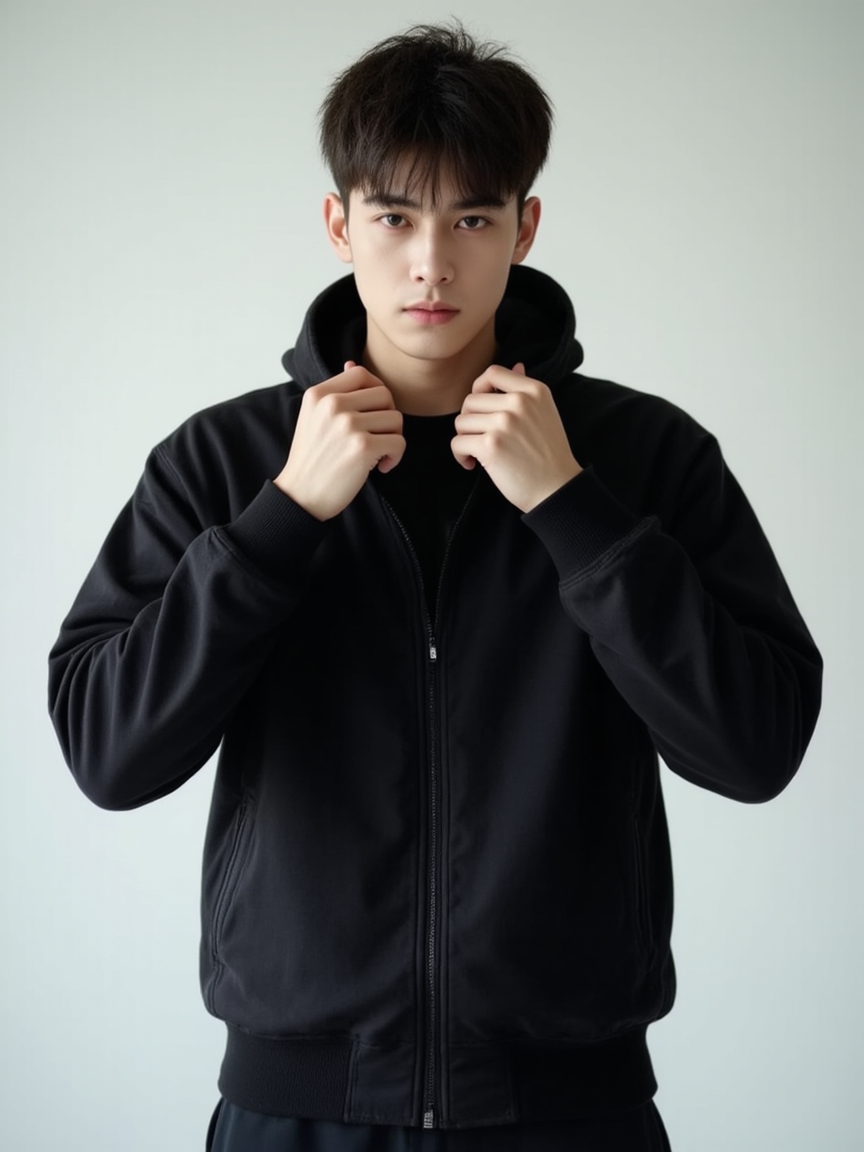
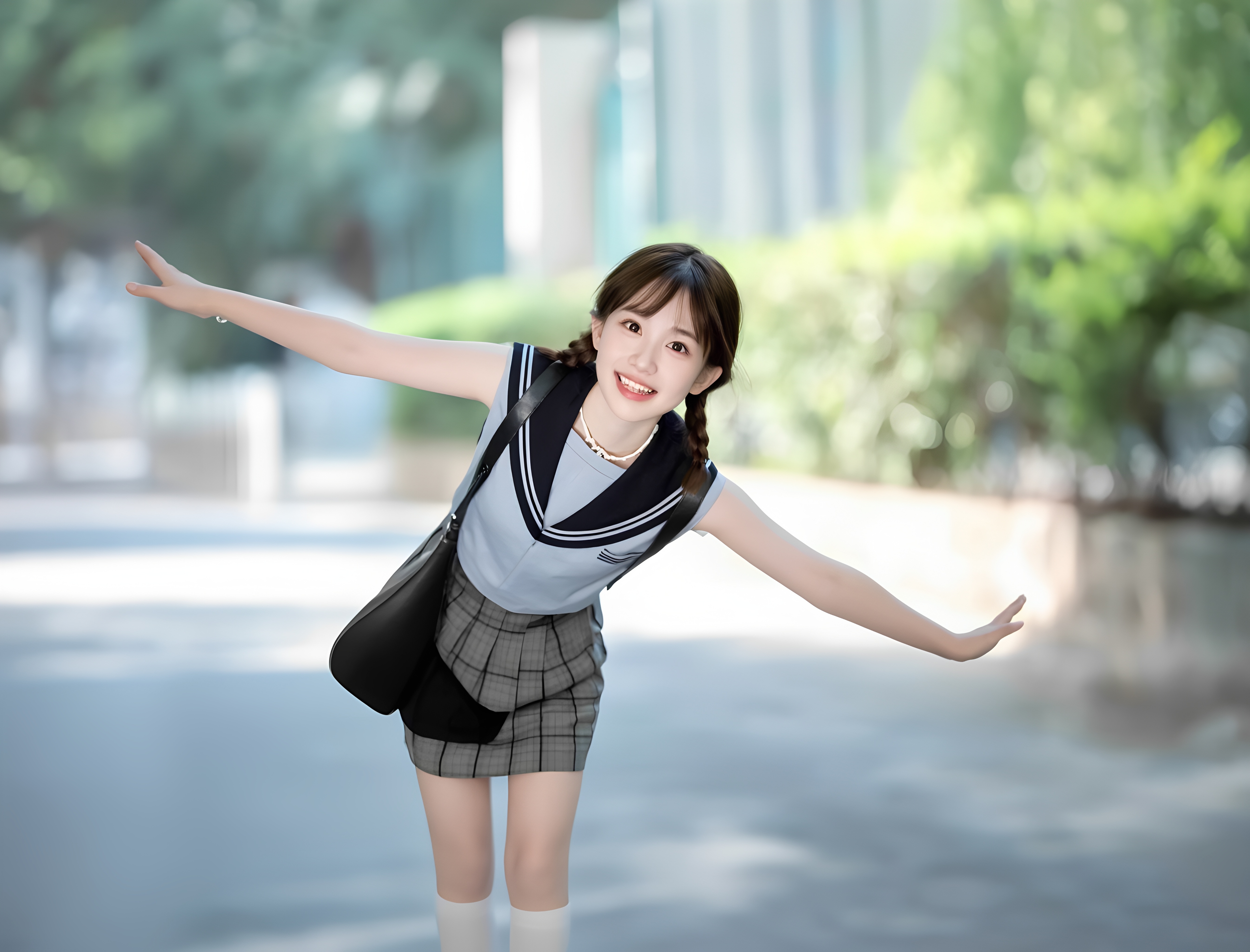
Full-Body
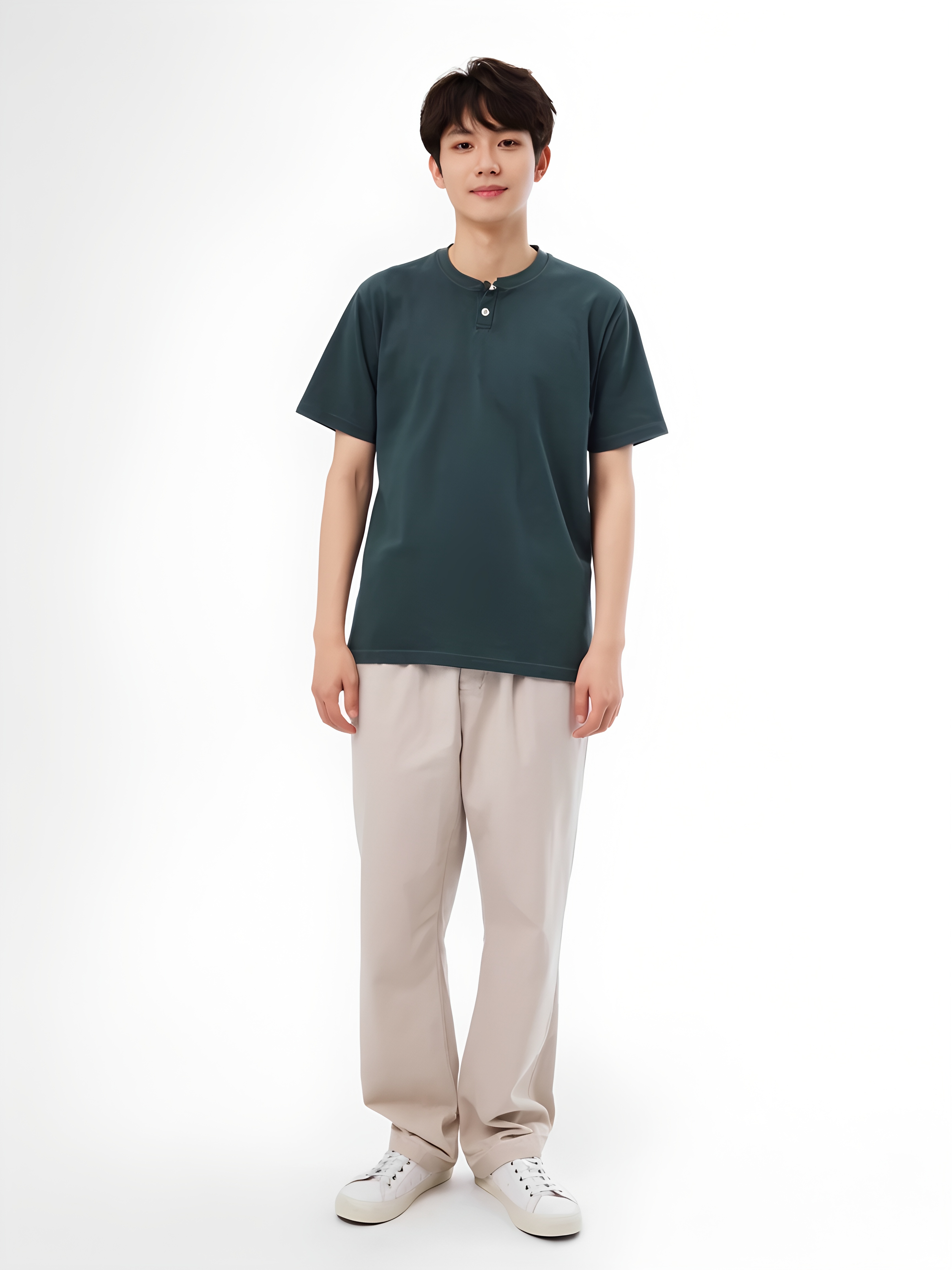
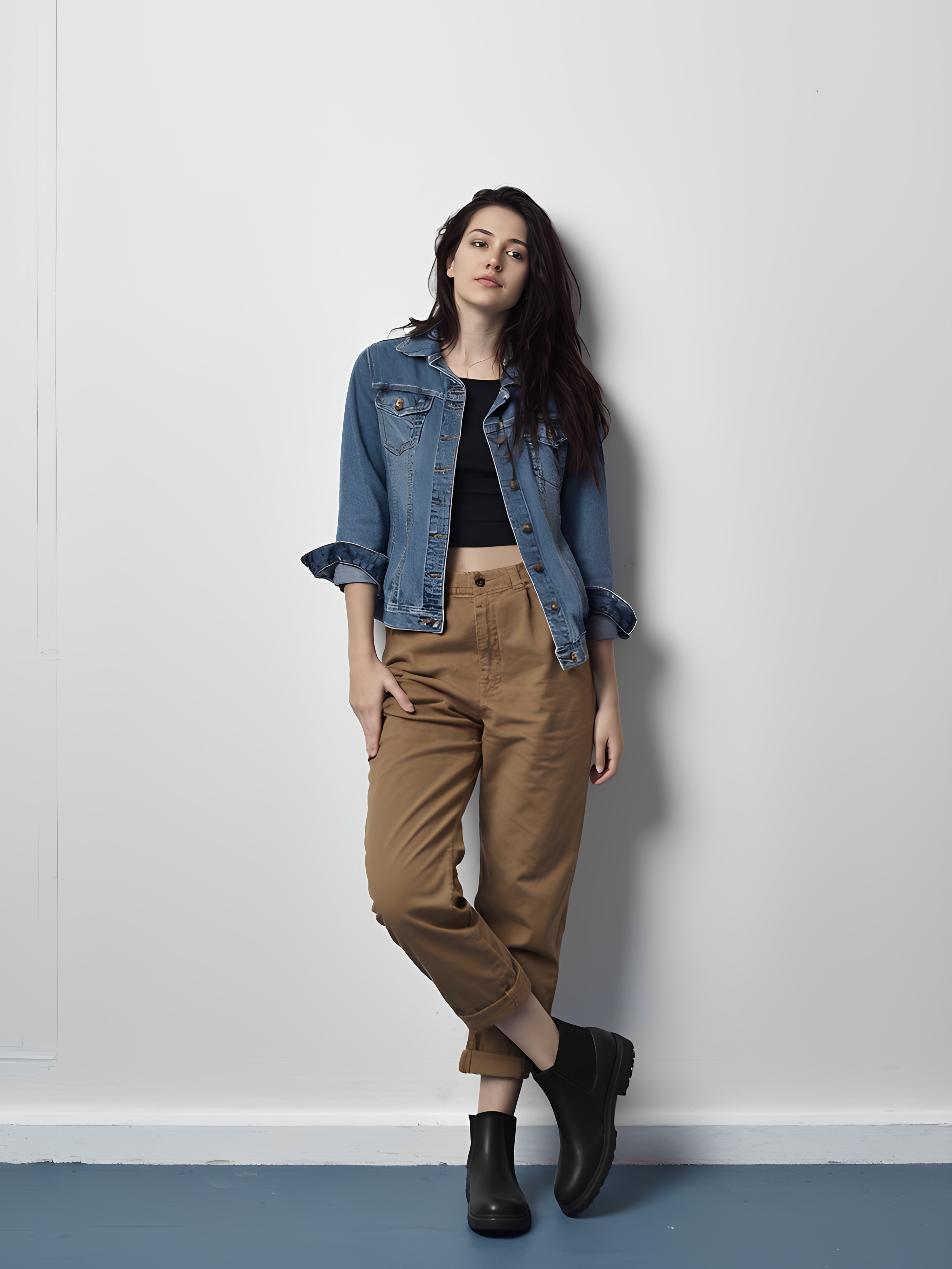
- 1.Keep the character's proportions consistent between the image and the reference video. Avoid using a full-body reference video with a half-body image.
- 2.Ensure the character's entire body and head are clearly visible and not obstructed.
- 3.Character Selection is supported for up to 1 character. For best results, choose characters with larger proportions in the frame.
- 4.Supports uploading images of realistic/stylised characters (including humans, humanoid animals, certain pure animals, and characters with partial humanoid body proportions).
- 5.The short edge must be at least 300px, and the long edge must not exceed 65536px.
Motion Reference
Half-Body
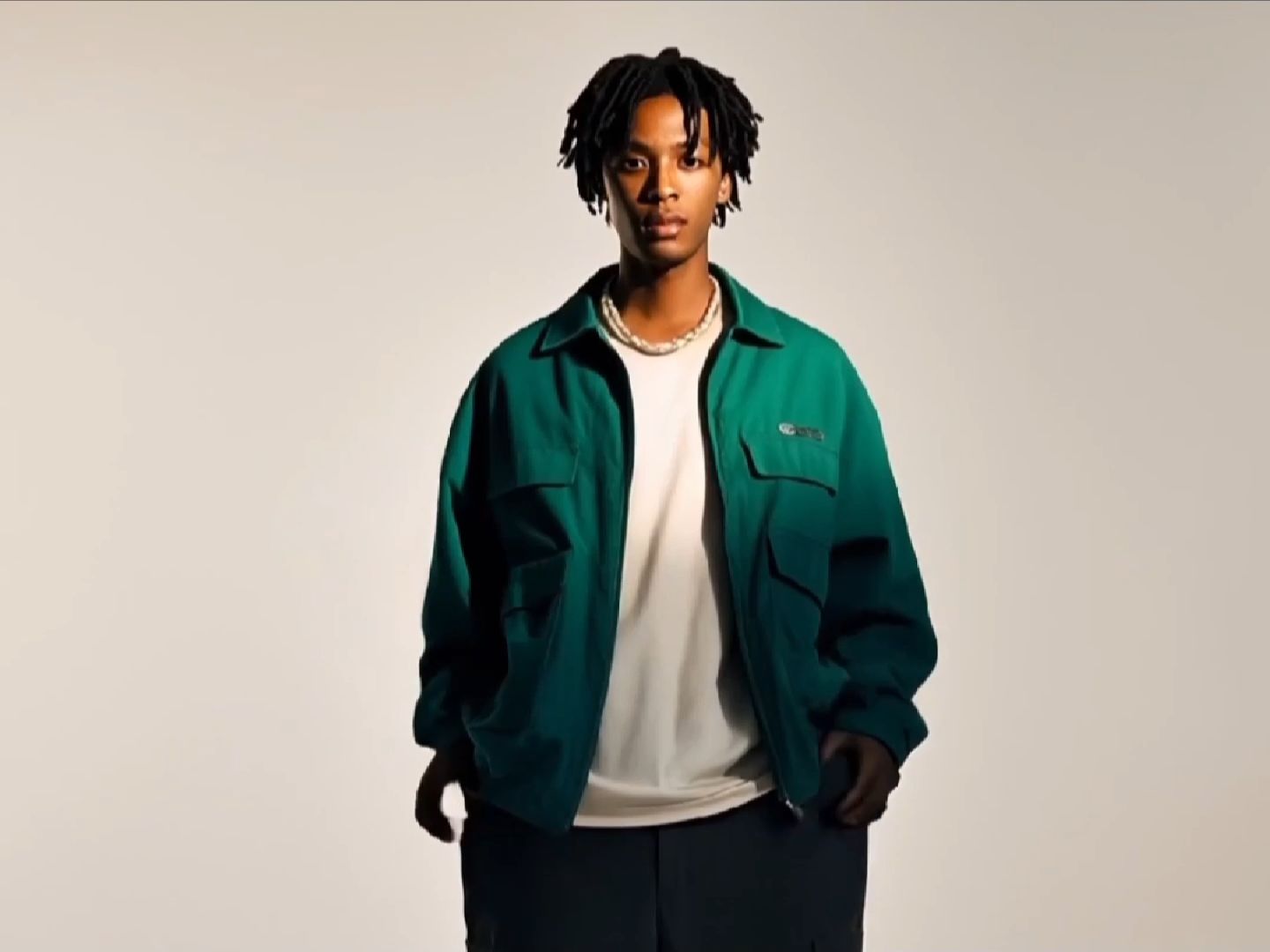
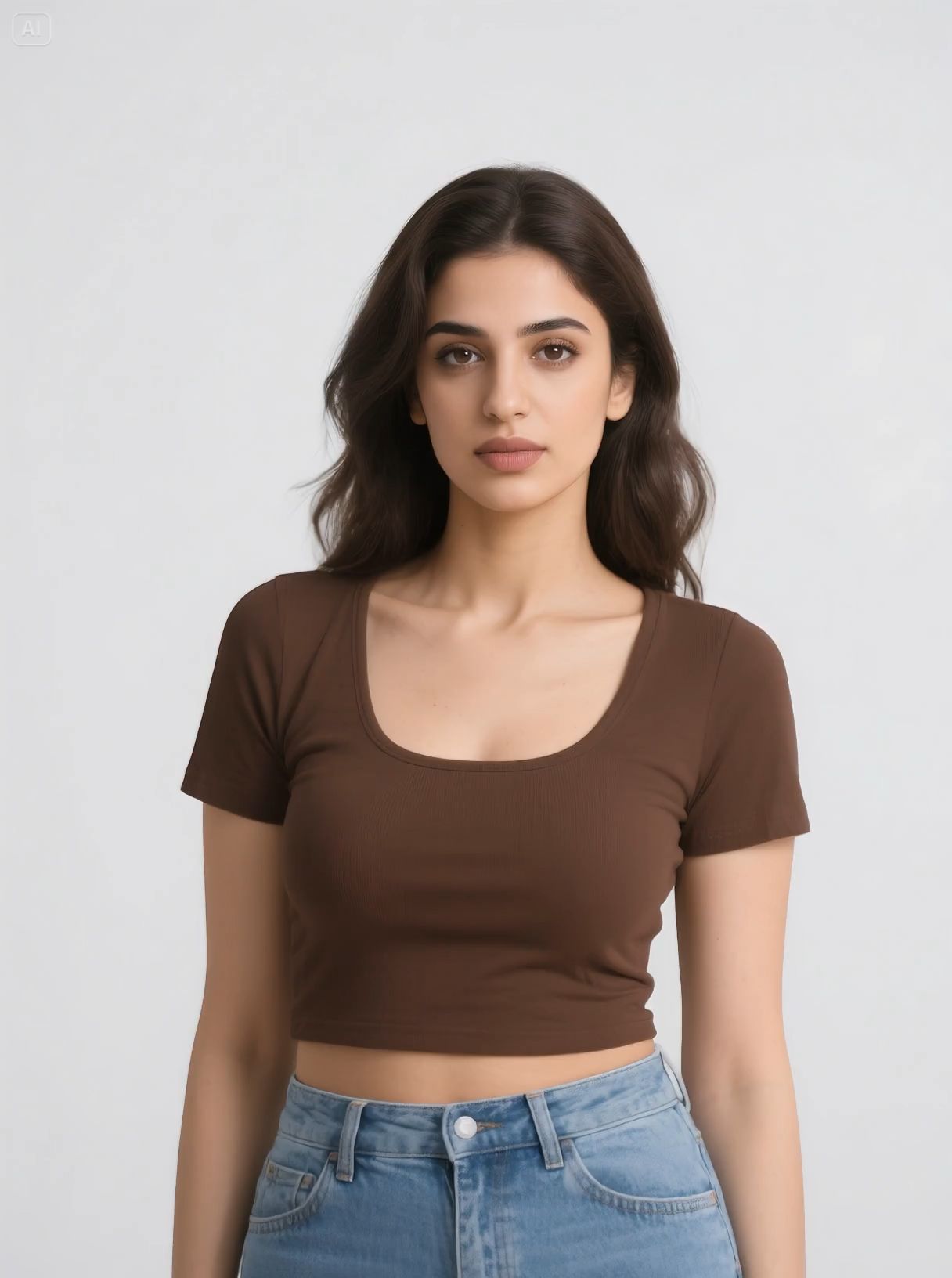
Full-Body
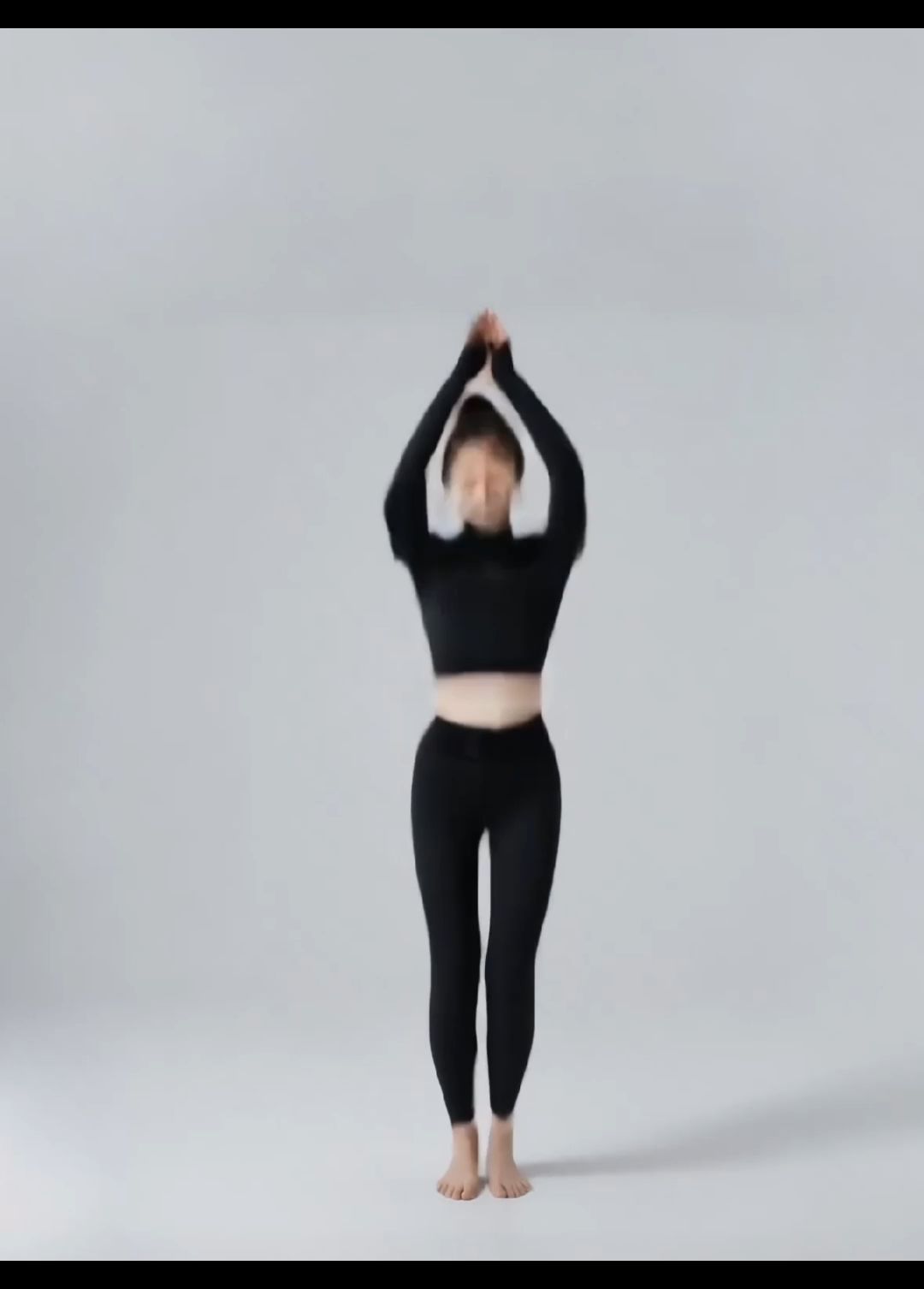
- 1.Ensure the character's entire body and head are clearly visible and not obstructed.
- 2.Upload a single character motion reference. For motion reference with two or more characters, the motion of the character occupying the largest portion of the frame will be used for generation.
- 3.Real human actions are recommended, while certain stylised humanoid or humanoid body proportions can be recognised.
- 4.Avoid cuts and camera movements in the motion reference.
- 5.Avoid overly fast motions; steady, moderate movements yield the best results.
- 6.The short edge must be at least 340px, and the long edge must not exceed 3850px.
- 7.The duration range of the uploaded motion reference is from 3 to 30 seconds, in which the generated video length will align with the duration of the uploaded video.
Character Orientation
1.By default, the video will be generated through "Character Orientation Matches Video", and the character's movements, expressions, camera movements, and orientation will follow the motion reference. Other details can be controlled via prompts.
2.When you choose "Character Orientation Matches Image" to match the character orientation with the image reference, the character's movements and expressions will follow the motion reference, and the orientation will align with the character orientation in the reference image. Camera movements and other elements can be customised through prompts.
"Character Orientation Matches Image" Camera Movement Showcase
Zoom In
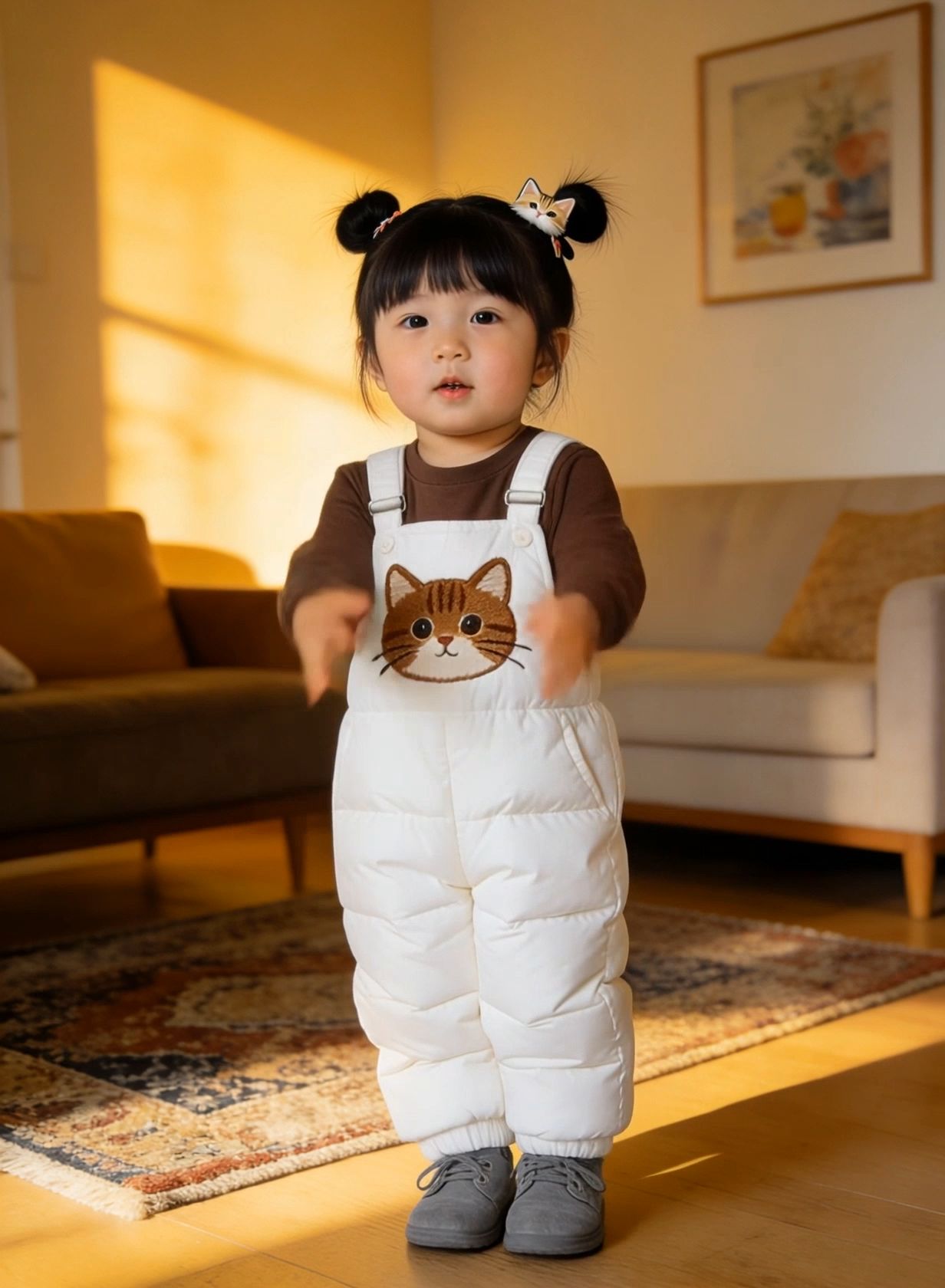
Zoom Out
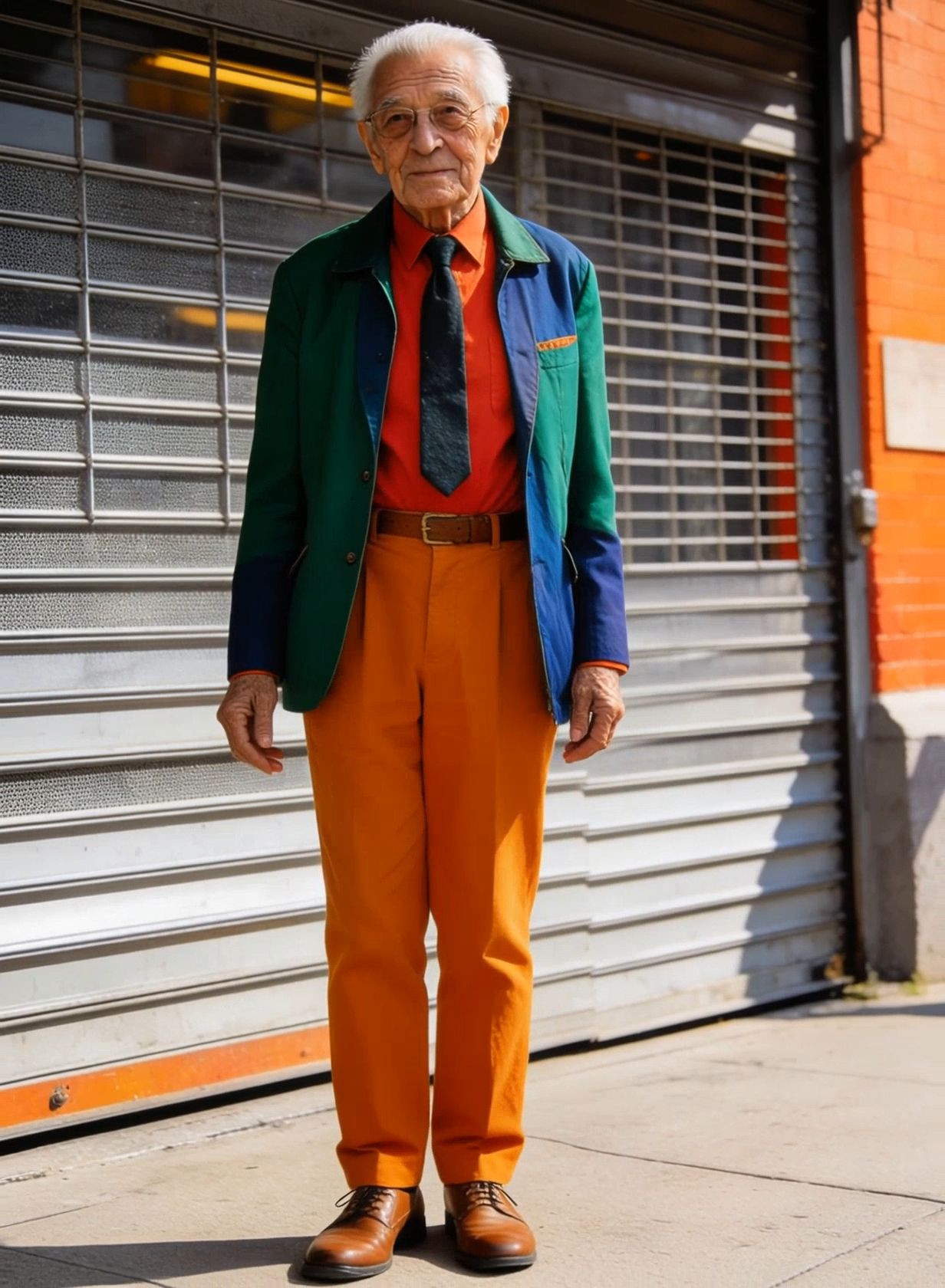
Camera Up
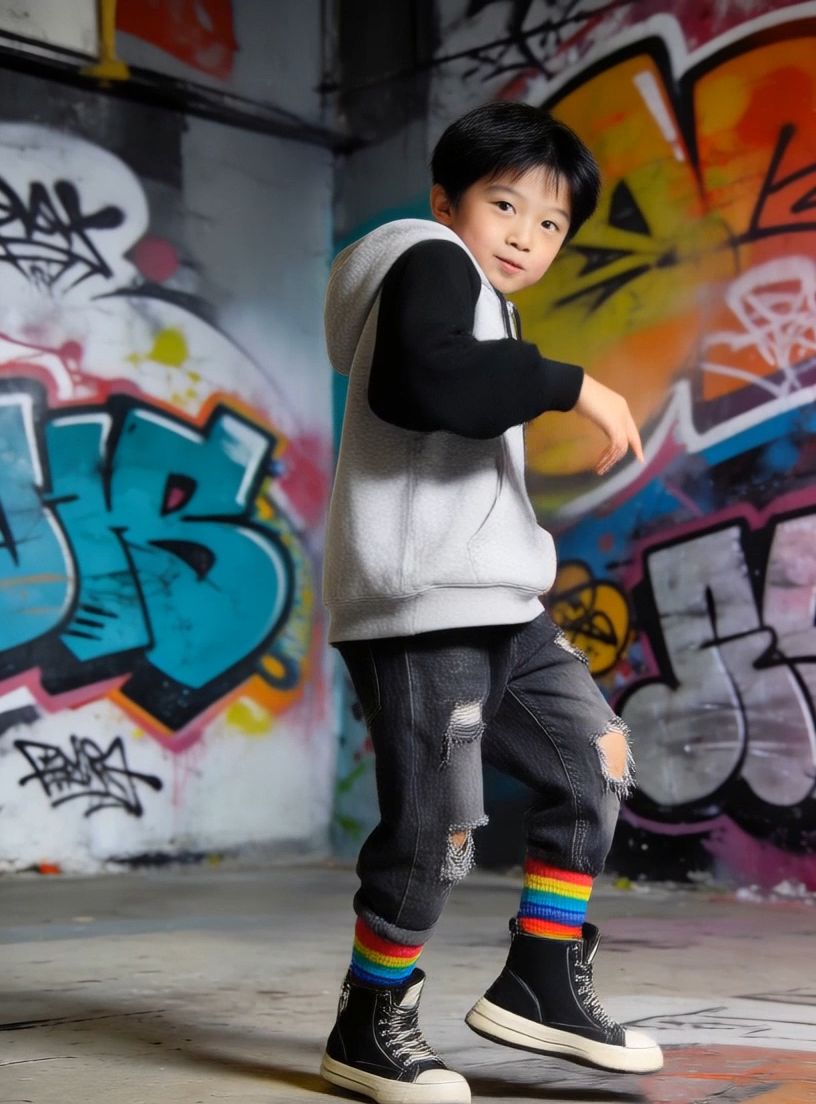
Camera Down
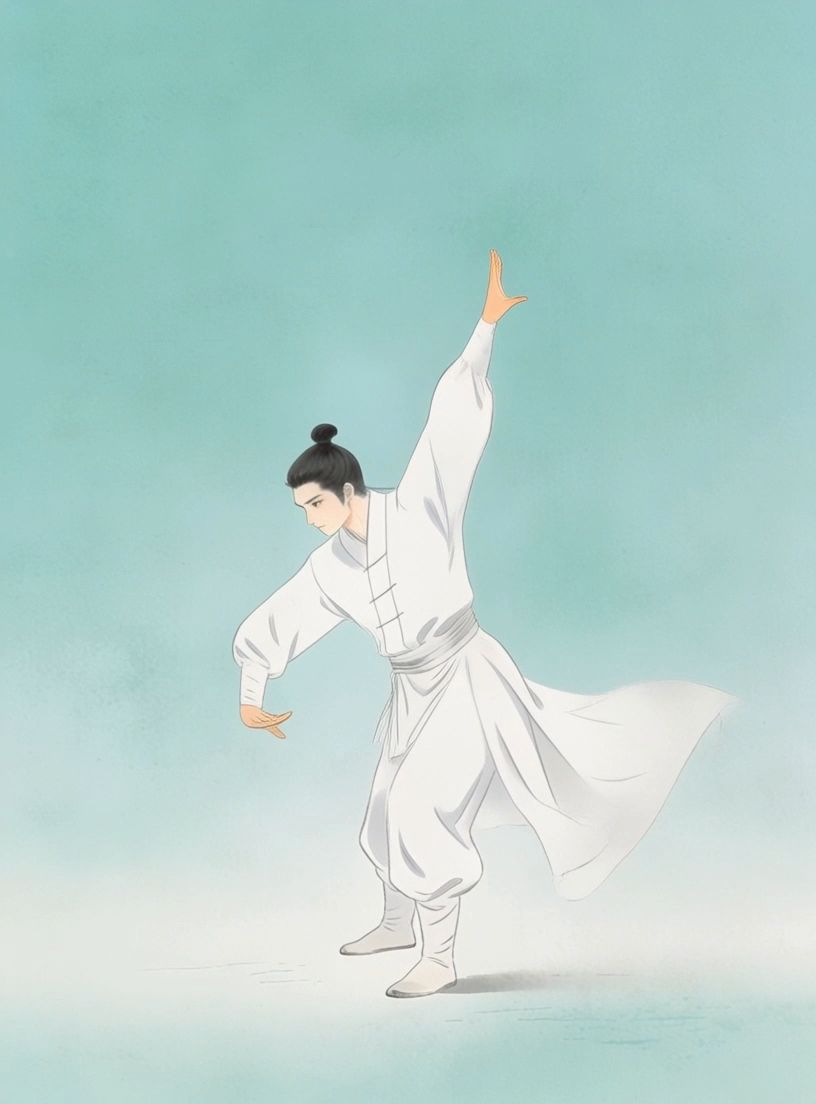
Fixed Position
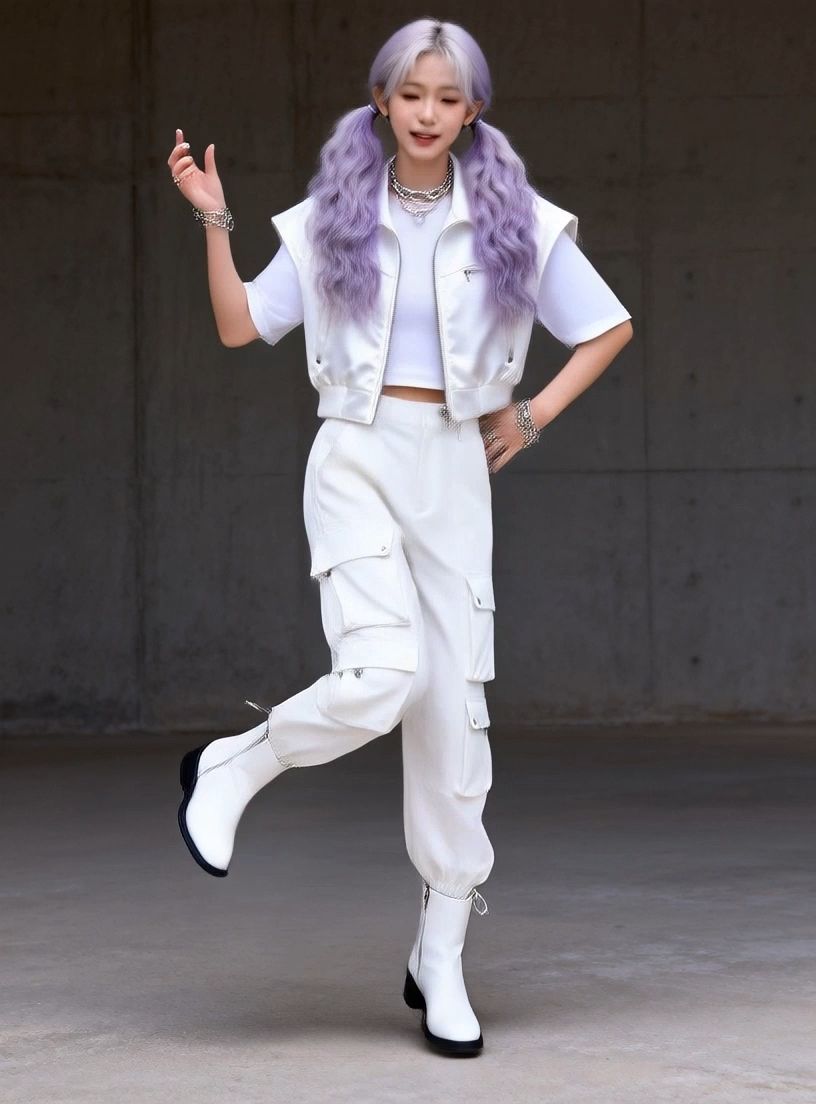
Model Pricing
1. The pricing is based on seconds, with video duration rounded to the nearest whole second.
2. For example, if the user generates a 3.4s standard video, the pricing will be calculated as 3s x 1 credit/s = 3 credits.
3. For example, if the user generates a 3.6s professional video, the pricing will be calculated as 4s x 2 credits/s = 8 credits.